Automations in Hellohire help streamline your hiring workflow by reducing repetitive tasks such as interview reminders, confirmation emails, follow-ups, and candidate status notifications.
You can configure automations for each meeting stage to customize how candidates are contacted and guided throughout the hiring process.
Here’s how to set it up:
Step 1: Log in to Your Hellohire Account
Go to https://www.tryhellohire.com and log in using your credentials.
Step 2: Go to the Jobs Section
Click “Jobs” in the upper left corner of your screen.

Step 3: Navigate to Jobs and Meeting Stages
- Select the job for which you'd like to configure automations.
- Choose the specific Meeting Stage where you want to configure automations.
- Each meeting stage has its own automation settings, allowing you to customize the communication and actions associated with that stage.

Step 4: Open the Automations Tab
Click on the “Automations” tab to begin setting up your automation rules.
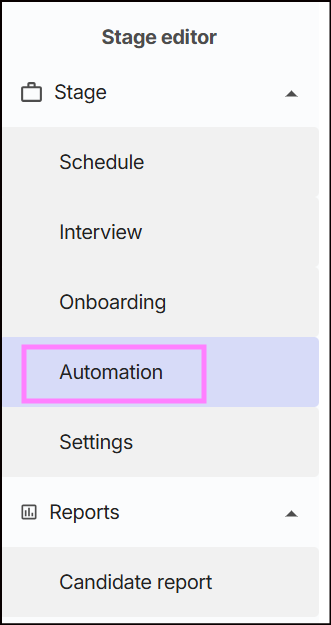
Step 5: Configure Your Automations
The Automations page includes several options to help manage candidate communications and interview scheduling.
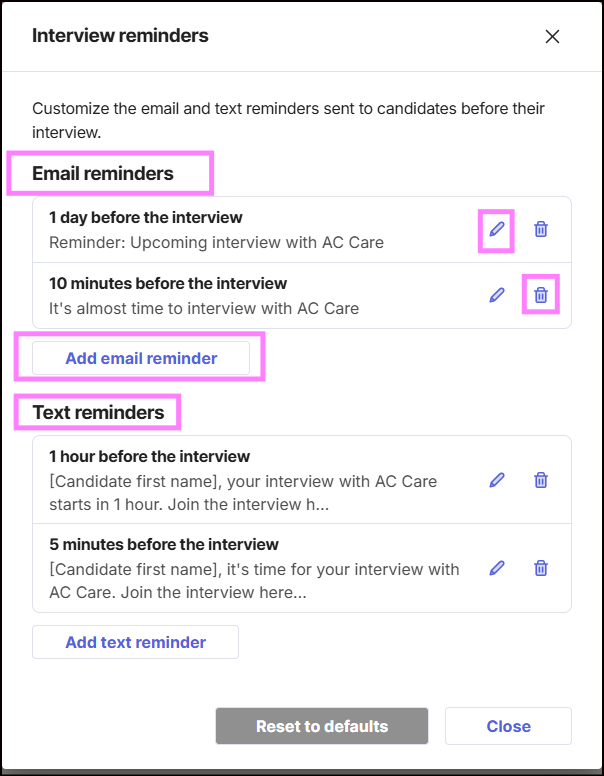
1. Interview Reminders
Use this automation to send automatic reminders to candidates about their upcoming interviews.
You can configure the reminder settings to help candidates remember their scheduled interview and reduce missed appointments.

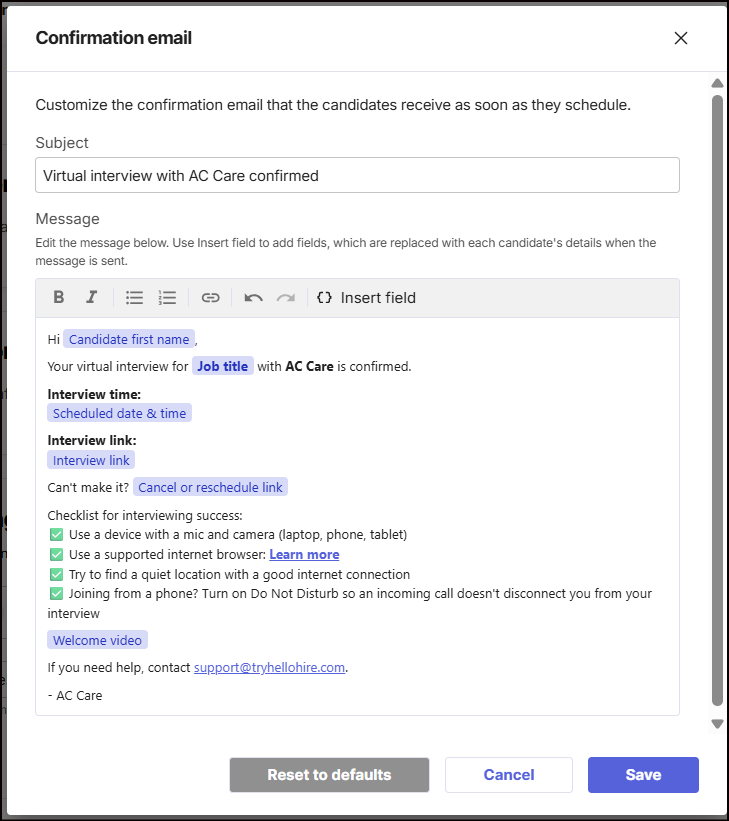
2. Confirmation Email
This automation sends candidates a confirmation email when their interview is scheduled.
You can customize the email content to provide candidates with relevant interview information and instructions.

3. Status change notifications
Use this automation to notify your team whenever a candidate in the selected meeting stage is moved to one of the statuses you've configured.

You can select the statuses that should trigger an email notification and specify the email addresses of the team members who should receive these updates.
How it works:
Enable Status Change Notifications.
Select the candidate statuses that should trigger notifications.
Add the email addresses of the team members who should receive the notifications.
Save your settings.
Once enabled, the listed recipients will receive an email whenever a candidate in that stage moves to one of the selected statuses.
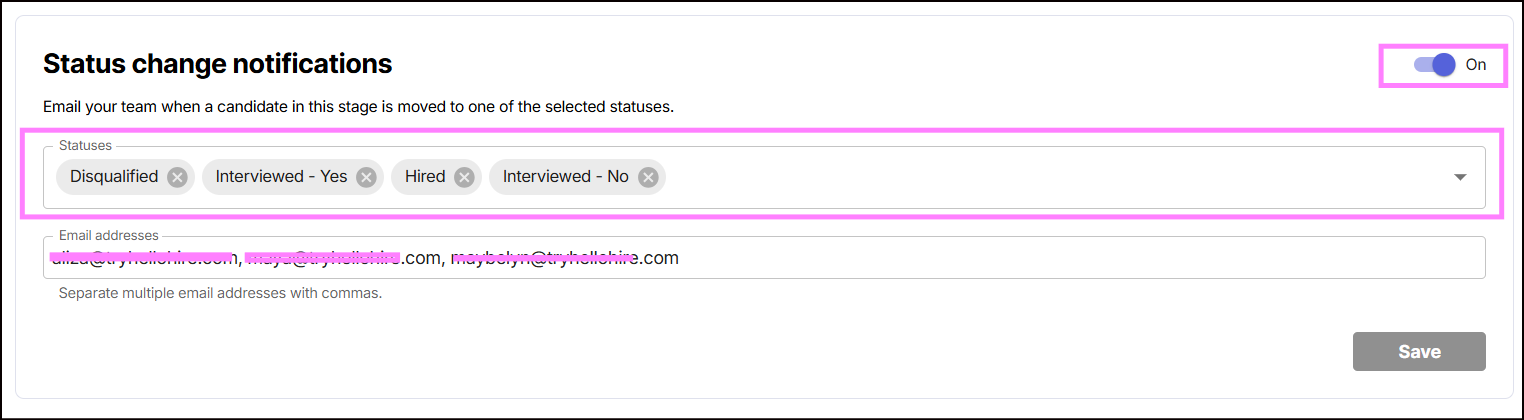
This helps your team stay informed about candidate progress and important status changes without having to constantly monitor the candidate pipeline.
3. Automated Next Interview Scheduling
If you want to automatically invite candidates to their next interview after a successful outcome:
Enable Automated Next Interview Scheduling.
Select the next job or stage to link for interview scheduling, depending on the available configuration.
Click Save.

Once enabled, candidates who receive a qualifying successful outcome can automatically be prompted to schedule their next interview.
4. Automate Emails Based on Interview Outcome
You can also configure automated emails based on a candidate's interview status or outcome.
Enable the automation you'd like to use and customize the email subject and message.
Available email automation types include:
Automated "Yes" Email
Automated "No" Email
Automated "Maybe" Email
Automated "Hired" Email
Automated "Scheduled" Email
Automated "No Show" Custom Email
Automated "No Show" Reschedule Email
Automated "Not Interviewed" Email
Automated "Disqualified" Email
You can enable multiple email automations and customize each one individually.

You May Also Find These Articles Helpful
- How the Automated "Yes" Email Works
- How the Automated "No" Email Works
- How the Automated "Maybe" Email Works
- How the Automated "Hired" Email Works
- How the Automated "Scheduled" Email Works
- How Automated "No Show" Emails Work
- How the Automated "Not Interviewed" Email Works
- How the Automated "Disqualified" Email Works
Hellohire Support
Have questions or need assistance? We’re here to help! Feel free to contact us at support@tryhellohire.com.
Was this article helpful?
That’s Great!
Thank you for your feedback
Sorry! We couldn't be helpful
Thank you for your feedback
Feedback sent
We appreciate your effort and will try to fix the article