The Disqualification Report provides insights into how candidates responded to screening questions. Questions are automatically sorted by disqualification rate, with the highest percentage of disqualified candidates displayed at the top. This helps you quickly identify which criteria are filtering out the most candidates.
Navigating the Disqualification Report
Step 1: Log in to Your Hellohire Account
Go to https://www.tryhellohire.com and log in using your credentials.
Step 2: Navigate to the Jobs Section
Click “Jobs” in the upper-left corner of your dashboard. Then click onto the first stage within the job:
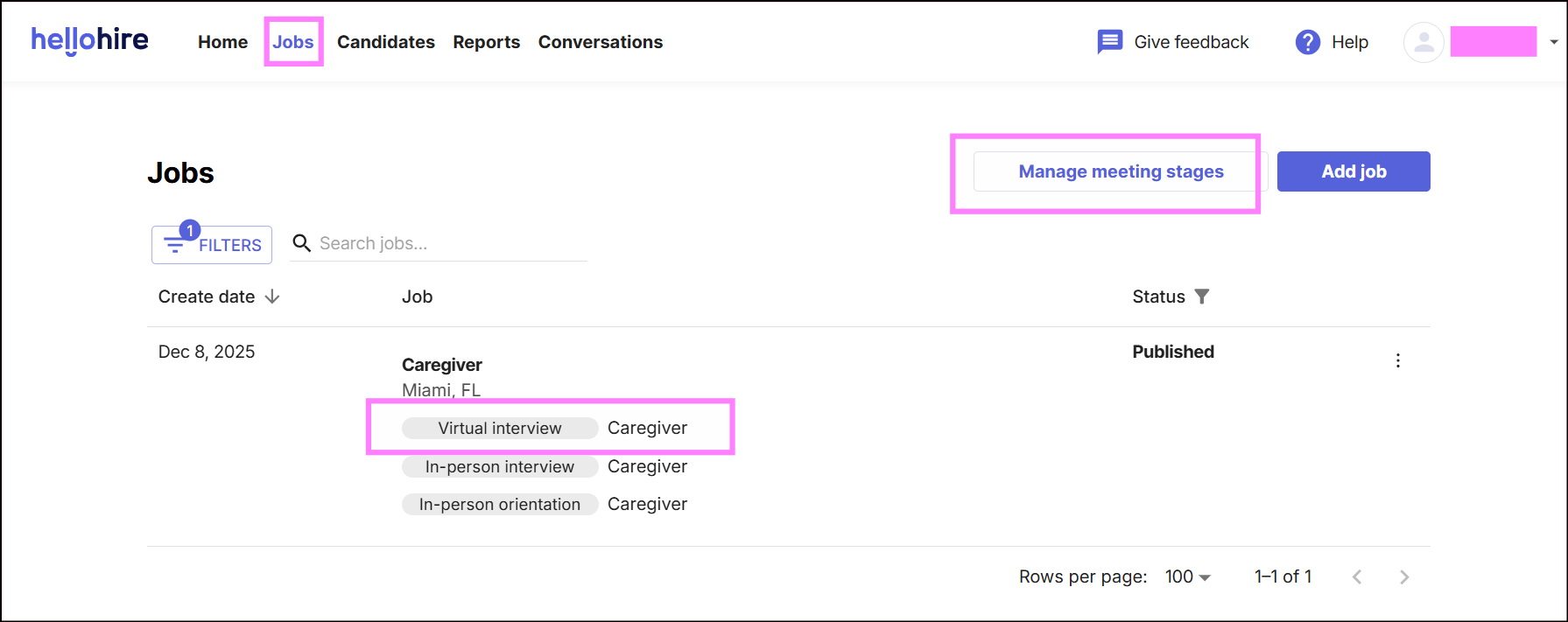
Note: One way to access is by clicking directly on Virtual Interview (Caregiver Virtual Interview).
Step 3: Go to Reports
Under the stage details, click “Report”.
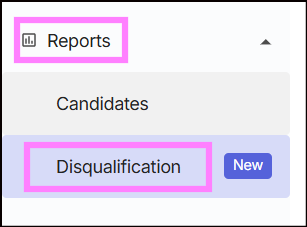
Step 4: Locate the Disqualification Report
Look for the “Disqualification” section. Here, you’ll see screening questions sorted by disqualification rate.
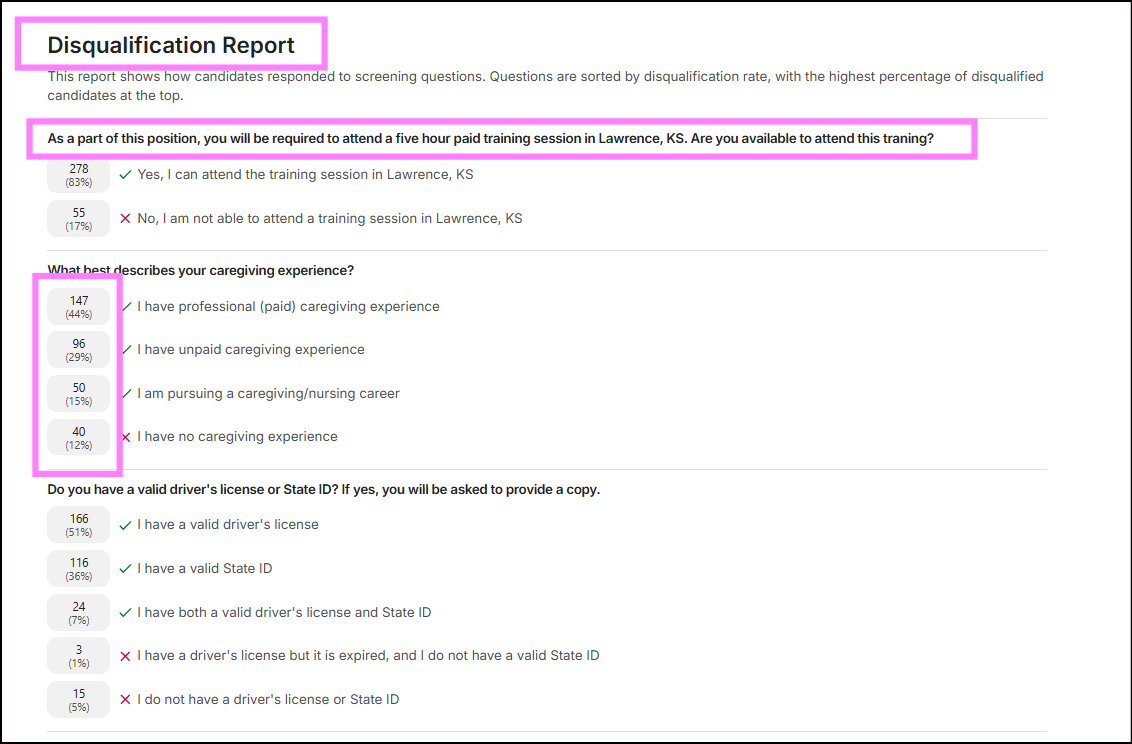
Using the Disqualification Report:
- Review which screening questions are disqualifying the highest percentage of candidates.
- Use this data to evaluate whether your screening criteria are aligned with your hiring goals.
- Adjust or refine questions if needed to ensure you’re capturing the right candidate pool.
Hellohire Support
Have questions or need assistance? We’re here to help! Feel free to contact us at support@tryhellohire.com.
Was this article helpful?
That’s Great!
Thank you for your feedback
Sorry! We couldn't be helpful
Thank you for your feedback
Feedback sent
We appreciate your effort and will try to fix the article