Automatically sending engagement messages helps candidates stay on track and encourages them to schedule interviews, keeping your hiring process moving forward. With Hellohire, you can set up to six touchpoints—customizable in both timing and content—to maximize candidate engagement.
You can manage these settings in the Candidate Engagement section of Hellohire. There, you’ll find options to configure your Drip Campaign (touchpoints), adjust the schedule, and personalize message content to fit your hiring needs.
Setting Up Candidate Engagement
Step 1: Log in to Your Hellohire Account
Go to https://www.tryhellohire.com and log in using your credentials.
Step 2: Navigate to the Jobs Section
Click “Jobs” in the upper-left corner of your dashboard.
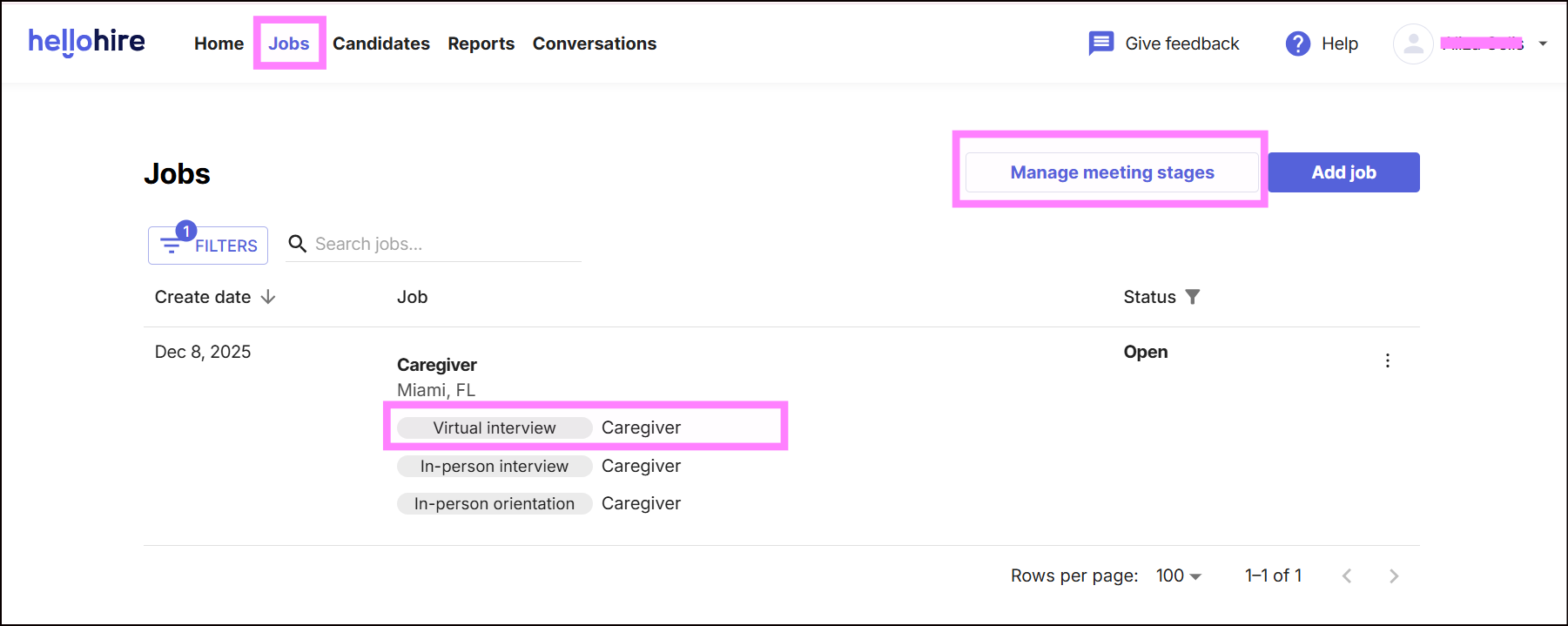
Note: One way to access is by clicking directly on Virtual Interview (Caregiver Virtual Interview).
Step 3: Manage Meeting Stages
Select the job title you want to configure.
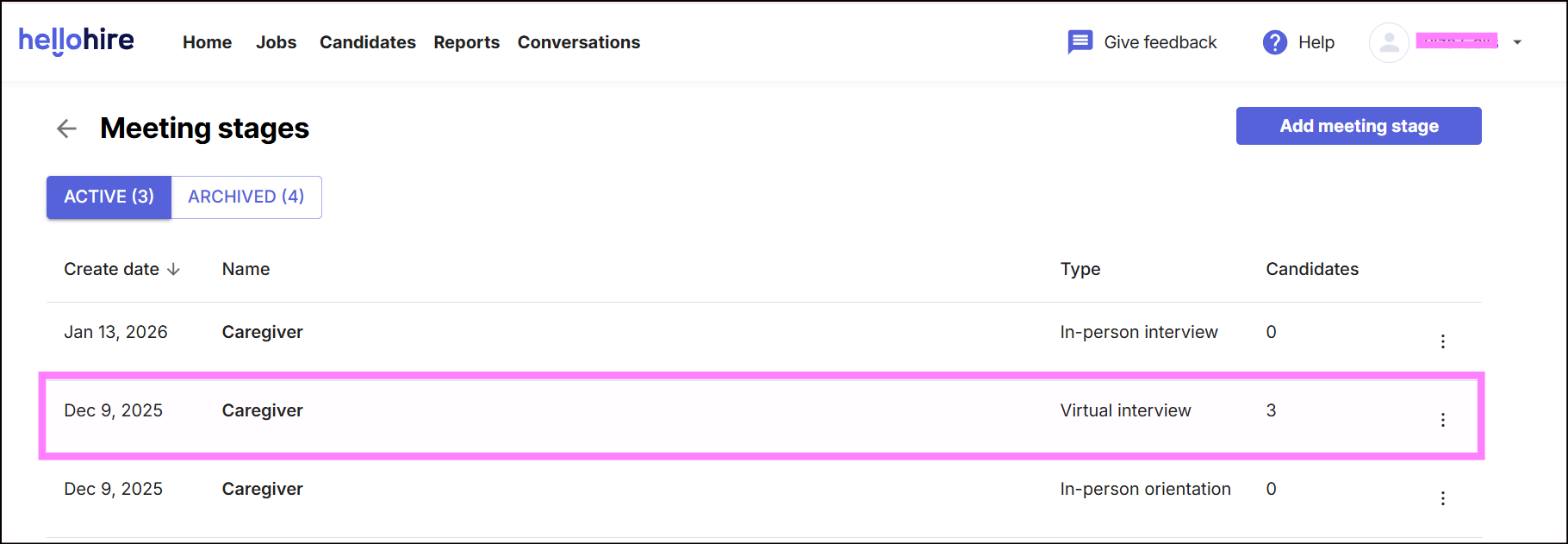
Step 4: Go to Engage
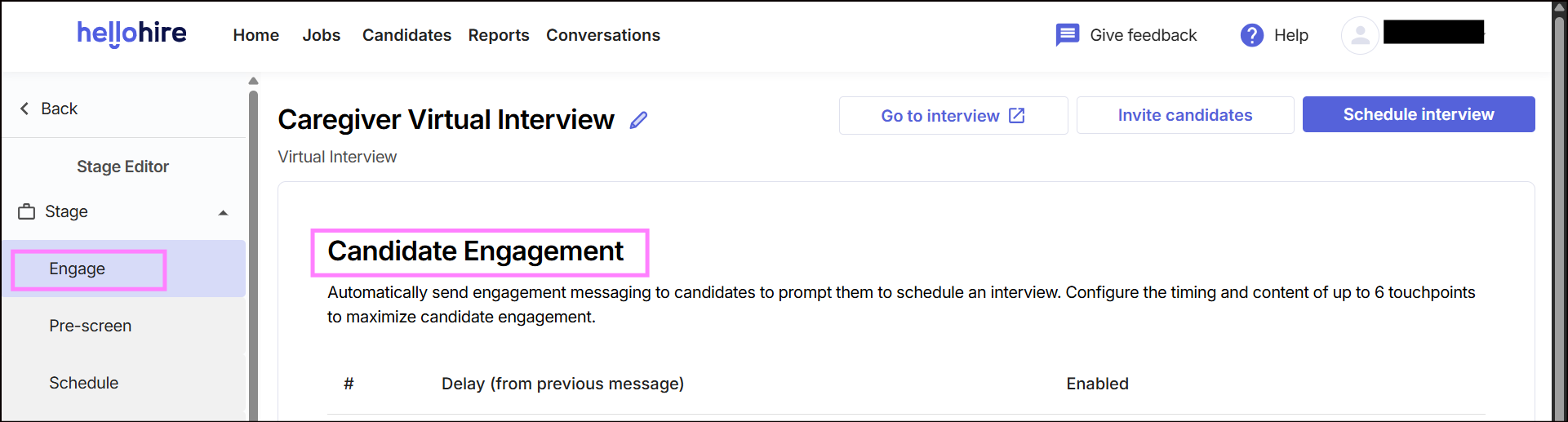
Within the hiring stages, click “Engage”.
Step 5: Locate Candidate Engagement
Look for the “Candidate Engagement” section.
Customizing Engagement Touchpoints
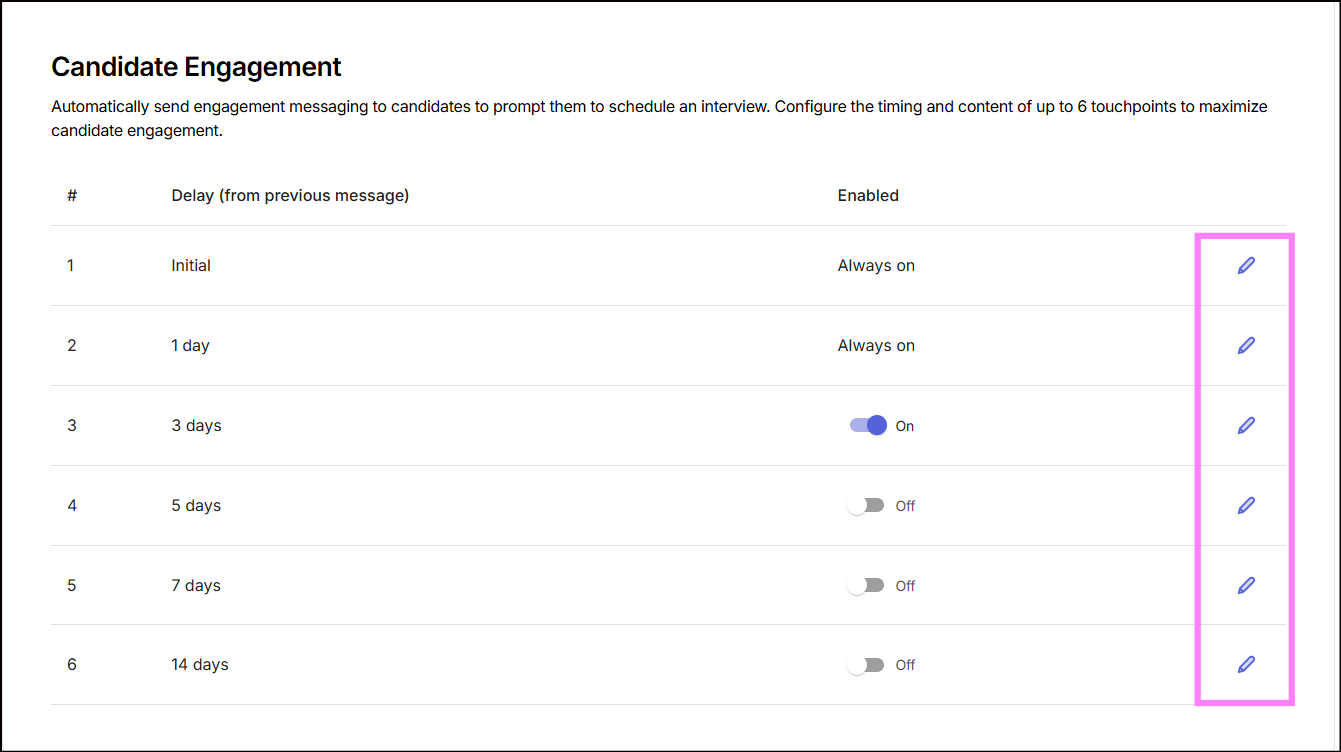
- Each touchpoint has a default number of days between messages, but you can adjust this to fit your hiring timeline.
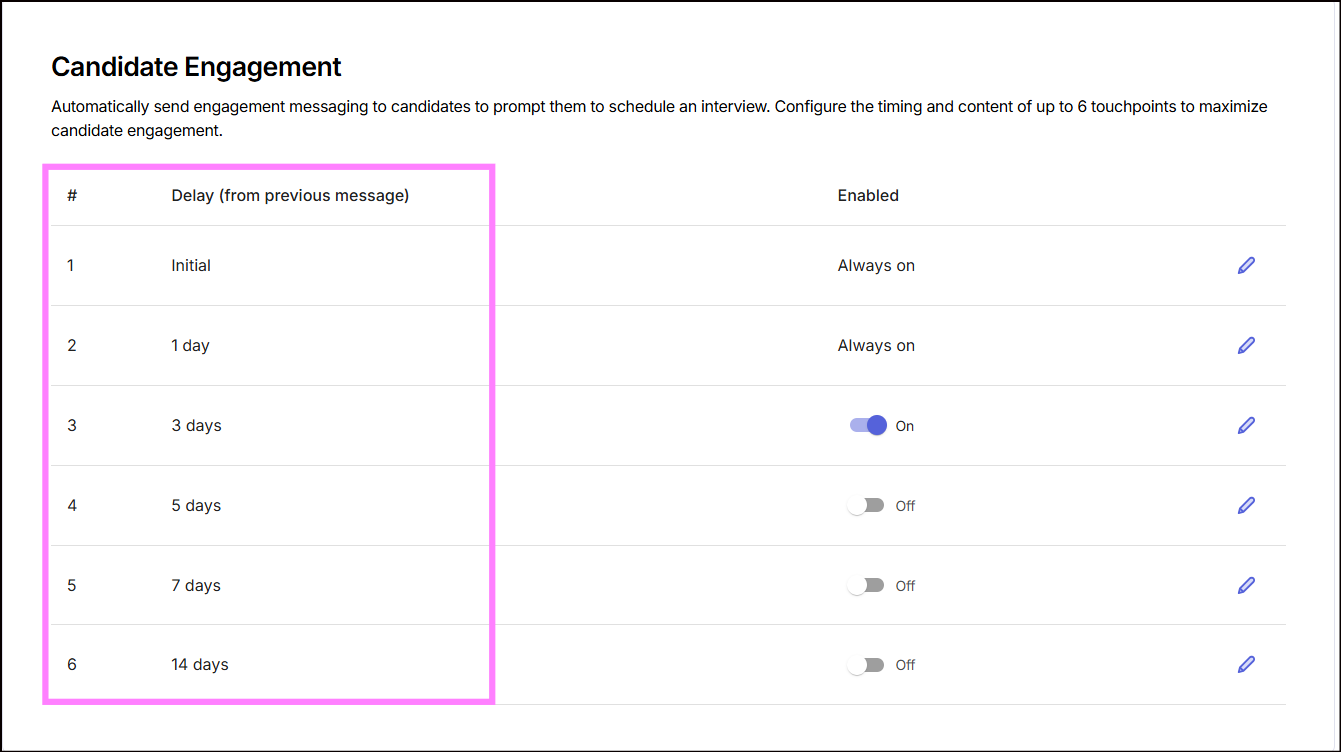
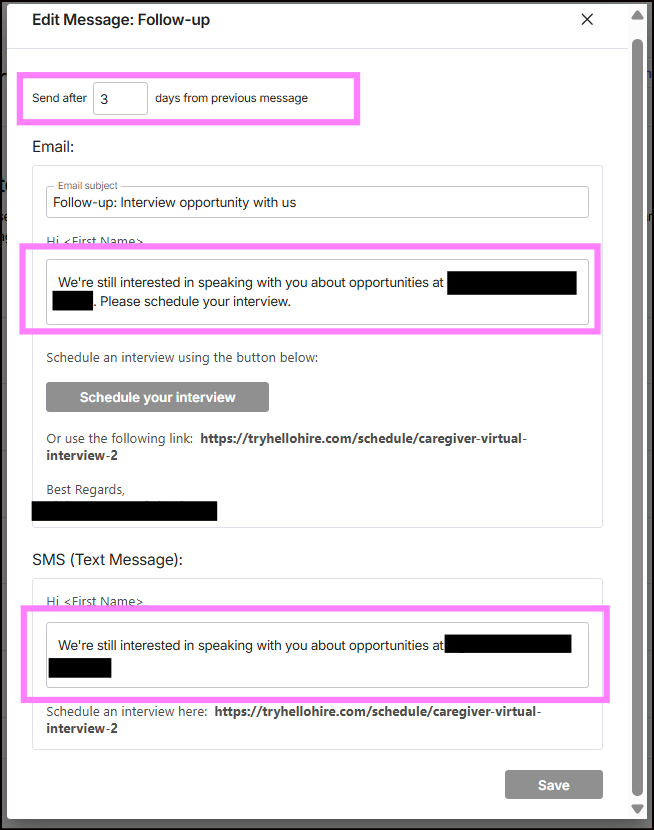
- To edit the timing, click the pencil icon next to the touchpoint and enter your preferred number of days.
- You can also customize the content of each email and SMS message to match your tone and goals.
Activating Engagement
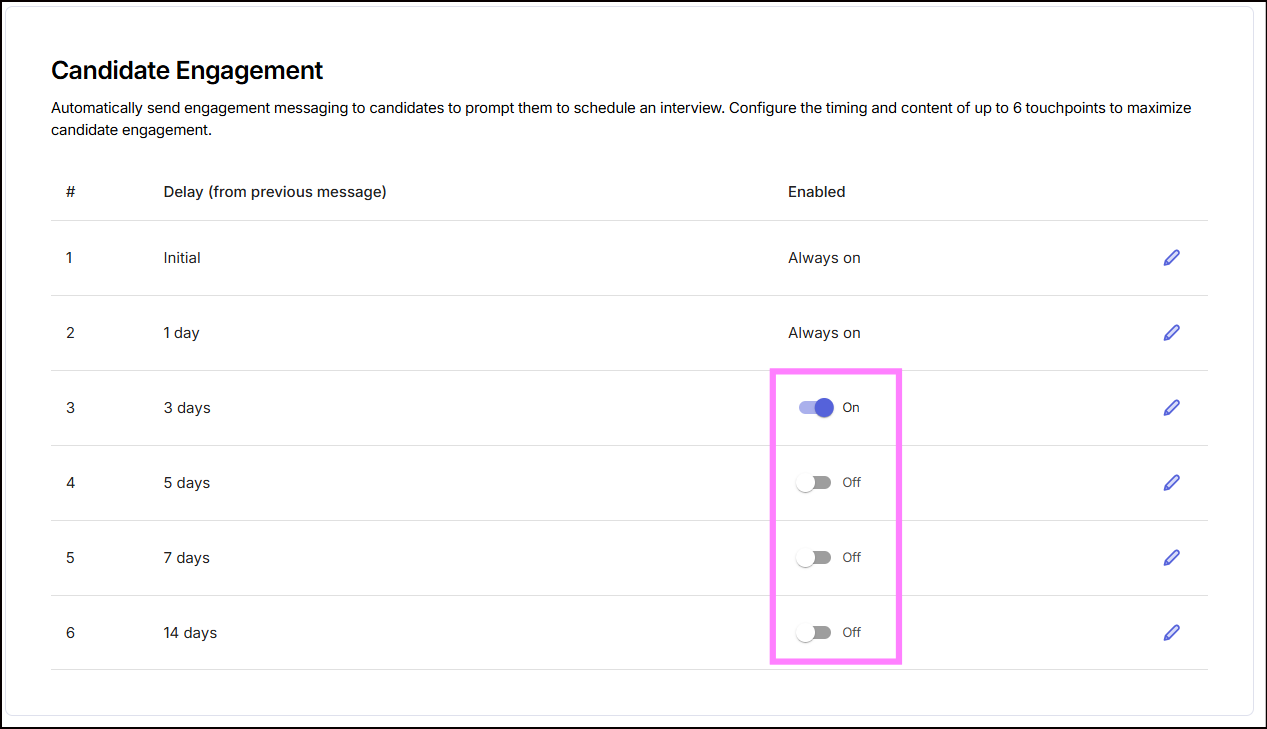
To activate candidate engagement messaging, simply toggle the on/off button in the Candidate Engagement section. Once enabled, candidates will automatically receive messages based on your configured schedule.
Hellohire Support
Have questions or need assistance? We’re here to help! Feel free to contact us at support@tryhellohire.com.
Was this article helpful?
That’s Great!
Thank you for your feedback
Sorry! We couldn't be helpful
Thank you for your feedback
Feedback sent
We appreciate your effort and will try to fix the article