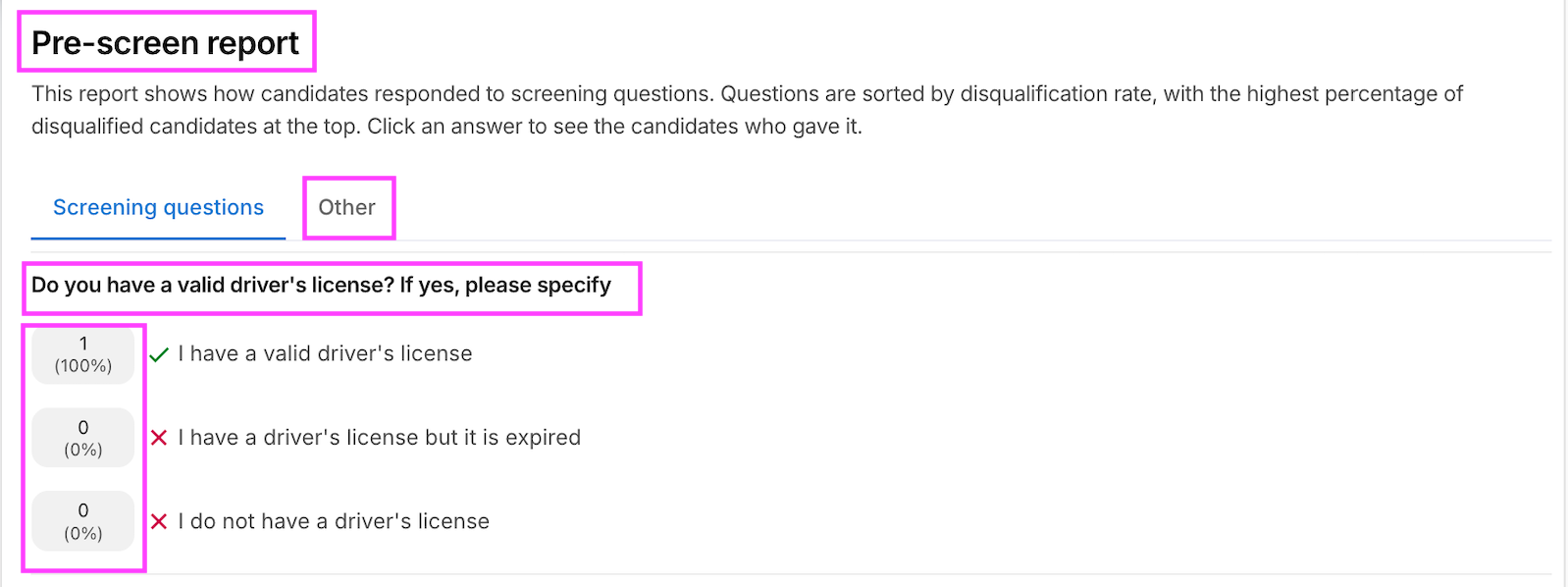
The Pre-screen Report provides insights into how candidates responded to pre-screening questions. It helps you review candidate responses and identify which screening criteria may be filtering out the most candidates.
The report is organized into two tabs: Screening Questions and Other, allowing you to review the available pre-screening information.
Navigating the Pre-screen Report
Step 1: Log in to Your Hellohire Account
Go to https://www.tryhellohire.com and log in using your credentials.
Step 2: Navigate to the Jobs Section
Click “Jobs” in the upper-left corner of your dashboard. Locate and select the job for which you want to view the Pre-screen Report.
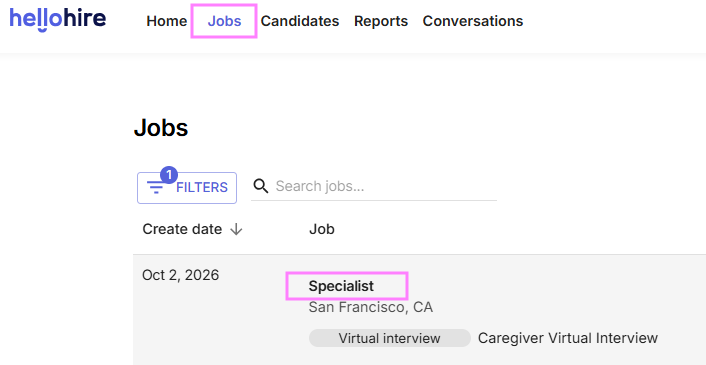
Note: Make sure to click on the job name to access the Pre-screen Report.
Step 3: Go to Reports
Under the job editor, click “Report”.
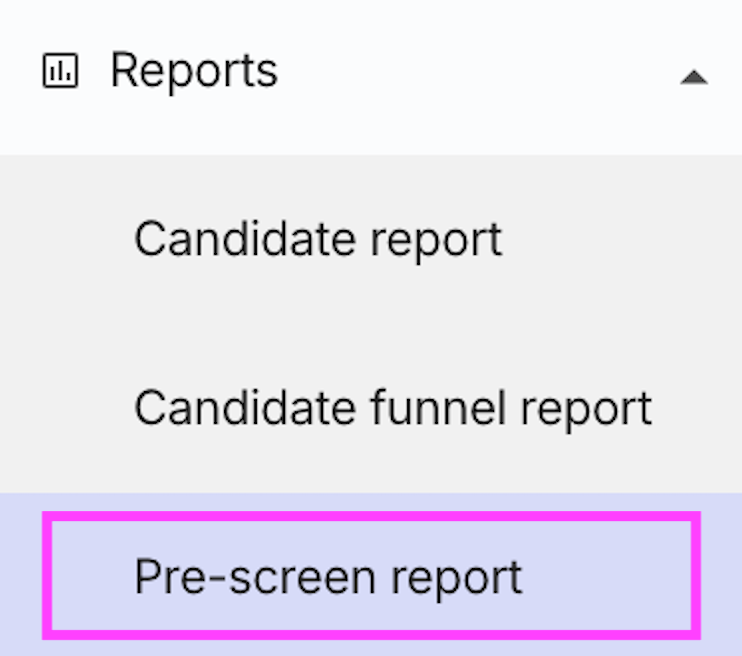
Step 4: Navigating the Pre-screen Report Tabs
The Pre-screen Report contains two tabs:
1. Screening Questions
View candidate responses to screening questions. Questions are arranged based on how frequently candidates meet or do not meet the criteria, with the highest percentages appearing first.
Use this information to:
- Identify which screening questions have the greatest impact on candidate eligibility.
Review how candidates responded to each question.
Evaluate whether your screening criteria align with your hiring goals.
Adjust or refine questions if needed to improve your candidate pool.
2. Other
Click the Other tab to view the answer breakdown for non-screening multiple-choice questions.
Hellohire Support
Have questions or need assistance? We’re here to help! Feel free to contact us at support@tryhellohire.com.
Was this article helpful?
That’s Great!
Thank you for your feedback
Sorry! We couldn't be helpful
Thank you for your feedback
Feedback sent
We appreciate your effort and will try to fix the article