We have some exciting news — Hellohire has updated how your jobs are managed, introducing a refreshed Jobs View! This means your hiring process is now easier, more visual, and more intuitive than ever. Here’s everything you need to know:
What’s new in the Jobs View?
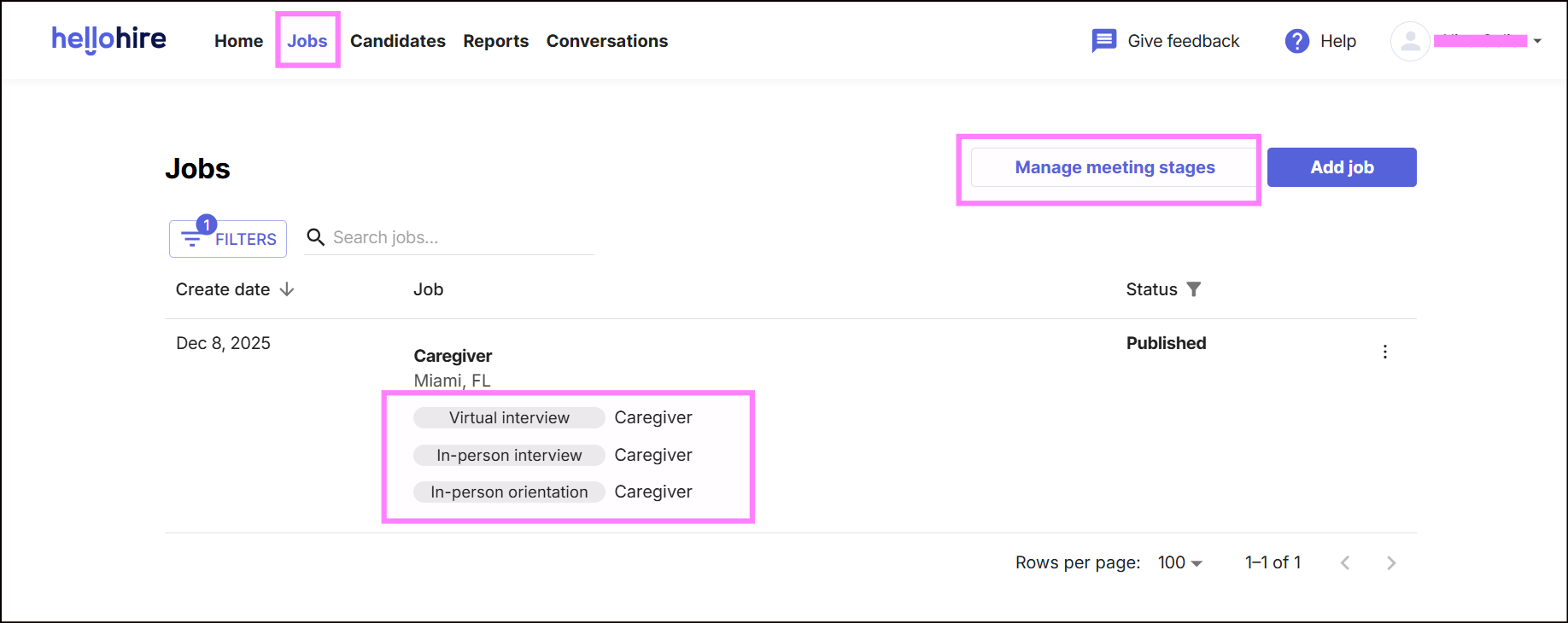
When you go to Jobs, you’ll now see each job listed along with its Meeting Stages. This makes it super easy to understand your hiring process at a glance. For example, a job might show stages like:
Caregiver Virtual Interview
In-Person Interview
Orientation
No more clicking around to find what comes next — it’s all right there!
Here's a sample:
How do I interact with the Meeting Stages?
From the Jobs view, you can:
Click a specific Meeting Stage to go directly to the job editor and perform your usual actions.
Click “Manage Meeting Stages” if you want to edit existing stages or add new ones.
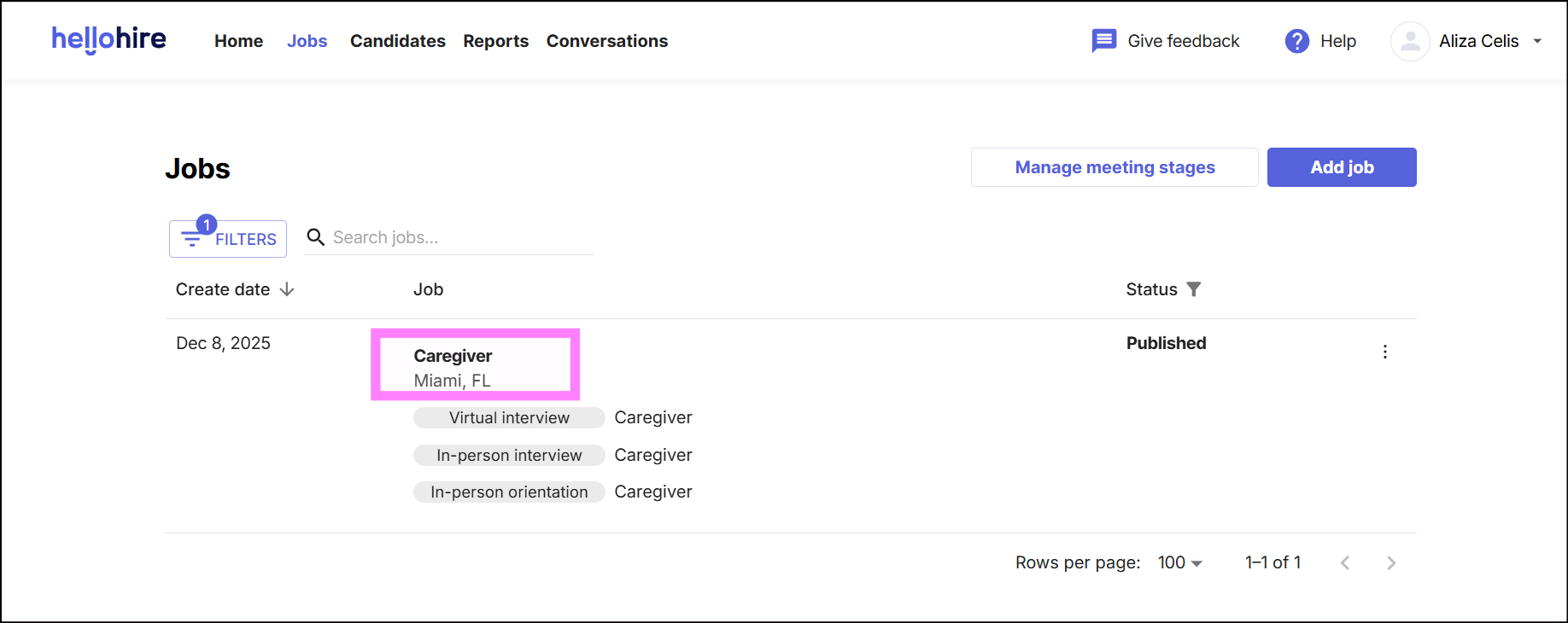
Once you click a Job itself (see the highlighted job below - "Caregiver"), you’ll see two main sections; Jobs Details and Meeting Stages.
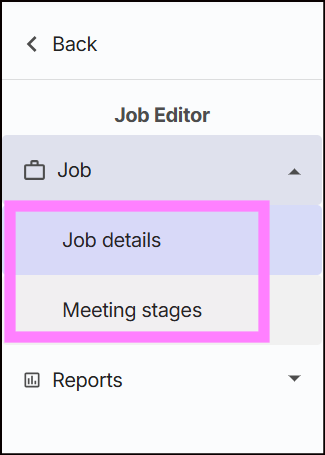
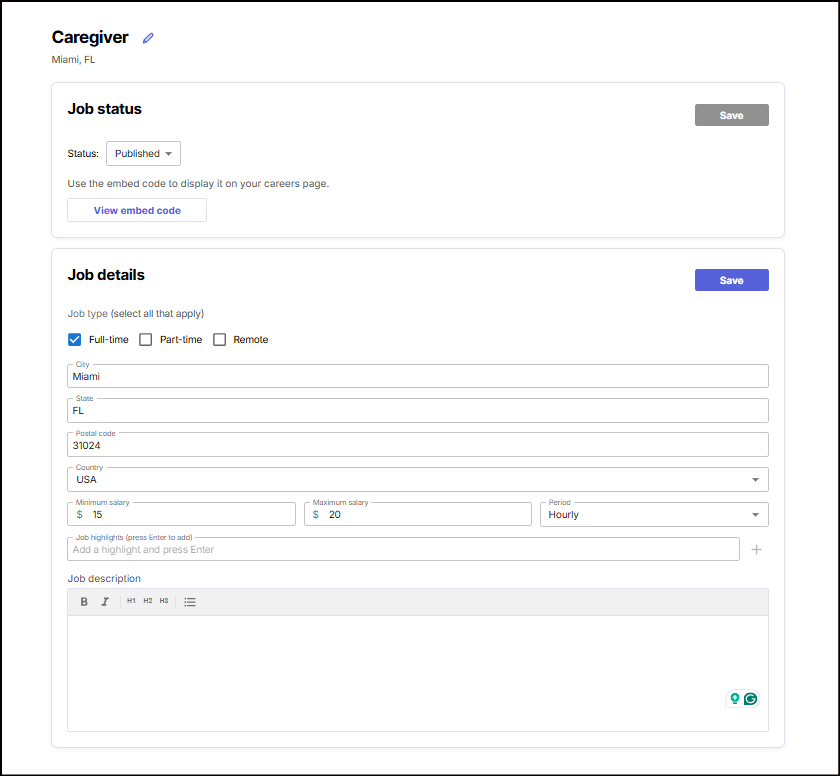
1. Job Details
- Here you can add or update:
- Location
Salary
Job Highlights (including perks and benefits to attract top talent!)
Job Description
- Embed Job Posting
Turn this on to showcase the job on your careers page, and use the embed code to add it directly to your website. For guidance, check out: How to Add and Customize Your Hellohire Jobs Widget on Your Website.
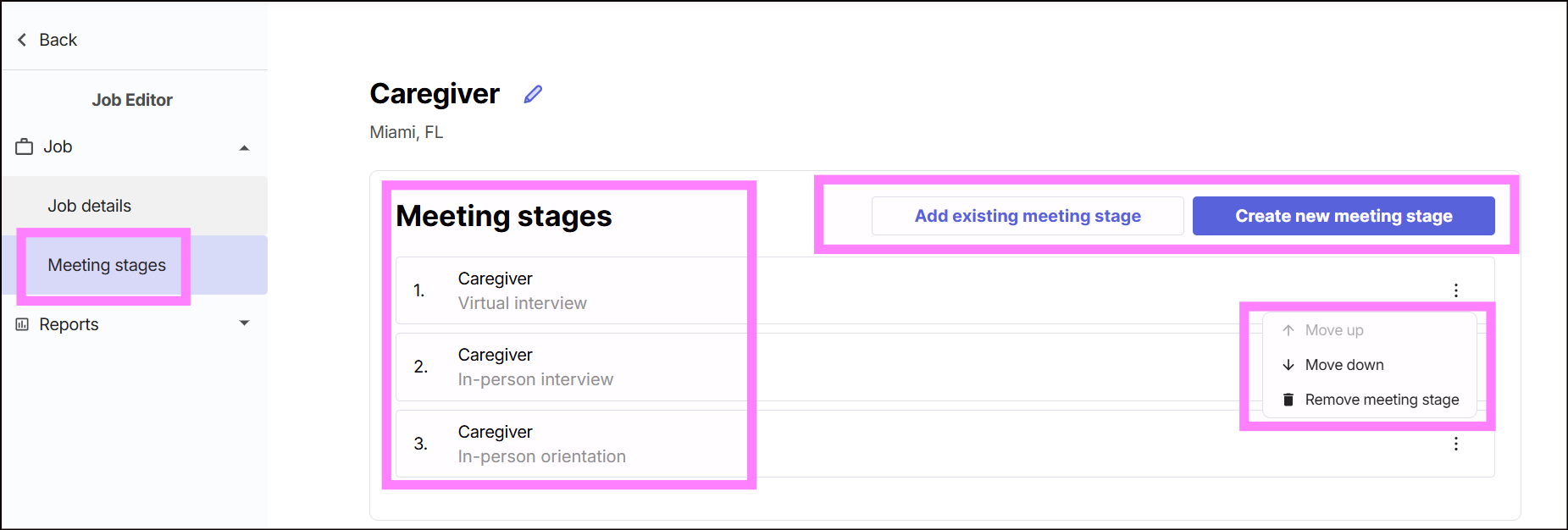
2. Meeting Stages
Here you can:
Add an exciting new stage to your hiring process.
Create a new custom hiring stage.
Move stages up or down to adjust your workflow.
Remove a stage if it’s no longer needed (click the three dots beside the specific stage).
Can I still add new jobs?
Absolutely! The Add Job feature is still available. After creating a new job, you’ll be prompted to add meeting stages, so your workflow stays consistent and organized.

We hope this visual, streamlined guide makes managing your jobs and hiring stages a breeze. Your hiring process just got a whole lot easier!
Hellohire Support
Have questions or need assistance? We’re here to help! Feel free to contact us at support@tryhellohire.com.
Was this article helpful?
That’s Great!
Thank you for your feedback
Sorry! We couldn't be helpful
Thank you for your feedback
Feedback sent
We appreciate your effort and will try to fix the article