Looking to streamline your hiring process by integrating Hellohire with BambooHR? This guide covers everything you need—from locating your domain and generating an API key to setting up job and status mappings.
Once connected, you'll be able to automate candidate engagement, sync application data in real time, and simplify your workflow across platforms.
Let's walk through the steps to make it happen.
What information do I need to connect BambooHR?
1. Your BambooHR Domain
Your domain is the company-specific subdomain in your BambooHR URL. It follows this pattern: https://<domain>.bamboohr.com
For example, if your BambooHR URL is https://acmecorp.bamboohr.com, then your domain is acmecorp.
2. Your BambooHR API Key
The API key authenticates Hellohire's connection to your BambooHR account. To generate one, you'll need sufficient permissions in BambooHR (typically Administrator access).
How do I generate an API key in BambooHR?
Step 1: Access the API Keys menu
- Log in to your BambooHR account.
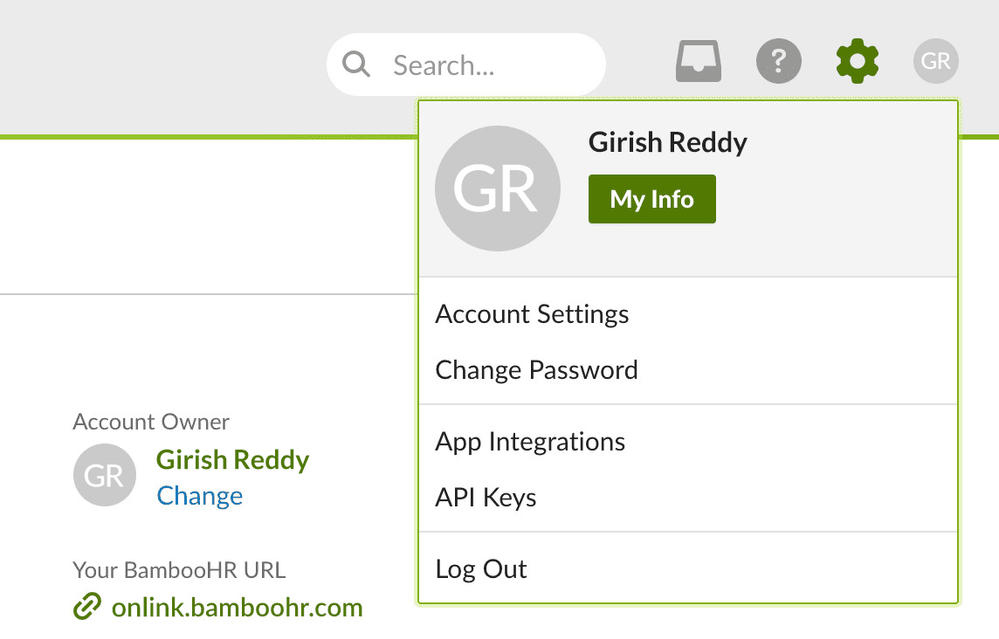
- Click your name in the lower left-hand corner of any page to open the user context menu.
- Select API Keys from the menu. (If you do not see this option, you may not have sufficient permissions — contact your BambooHR administrator.)
Step 2: Create a new API key
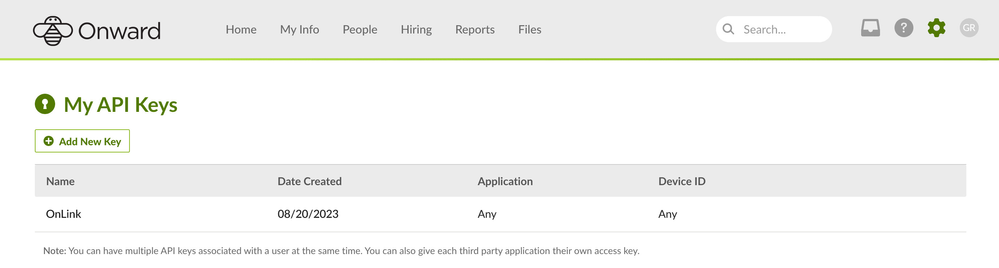
- Click Add New Key.
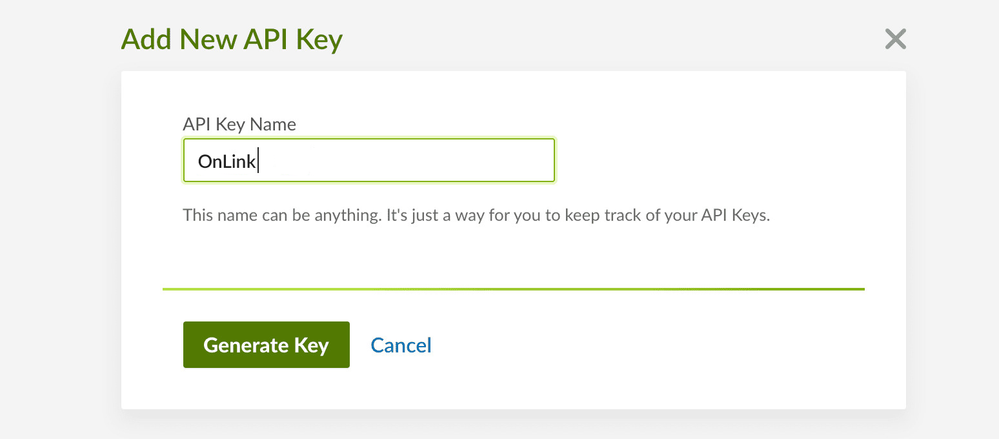
- Enter a descriptive name for the key — for example, Hellohire — so you can identify it later.
- Click Generate Key.
Step 3: Copy and save your API key
- Your new API key will be displayed on screen.
- Copy it immediately and store it somewhere secure.
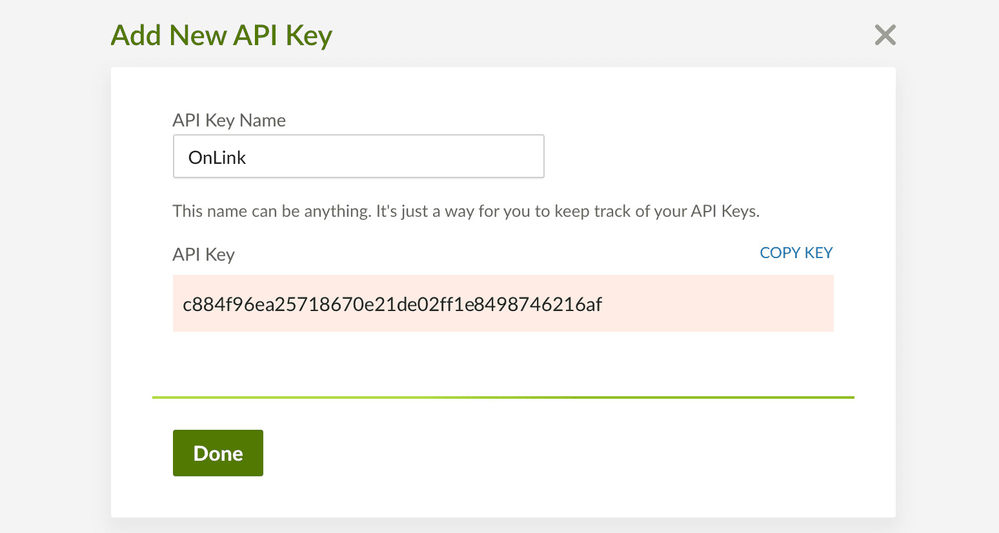
Important: This is the only time BambooHR will display this key in full. You will not be able to retrieve it again after leaving this screen.
How do I connect Hellohire to BambooHR?
Once you have your domain and API key, connecting only takes a few minutes.
Step 1: Navigate to Integration
1. Log in to your Hellohire account: https://www.tryhellohire.com
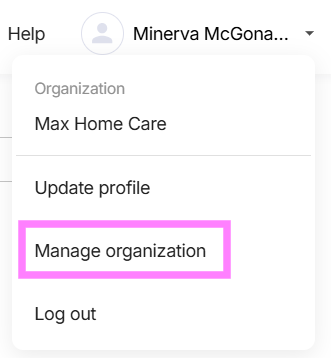
2. Click the dropdown in the top-right corner of your screen.
3. Select Manage organization > Integrations.
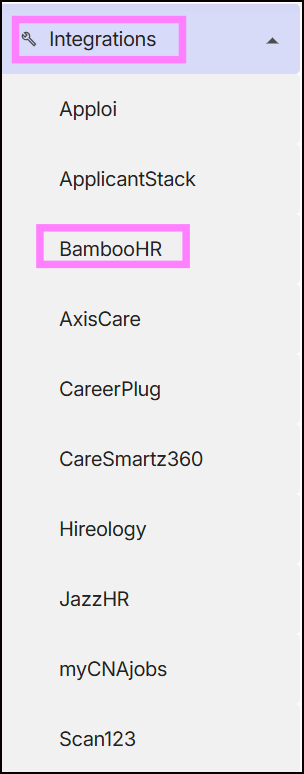
4. Click the dropdown beside Integrations and select BambooHR
Step 2: Enter Credentials
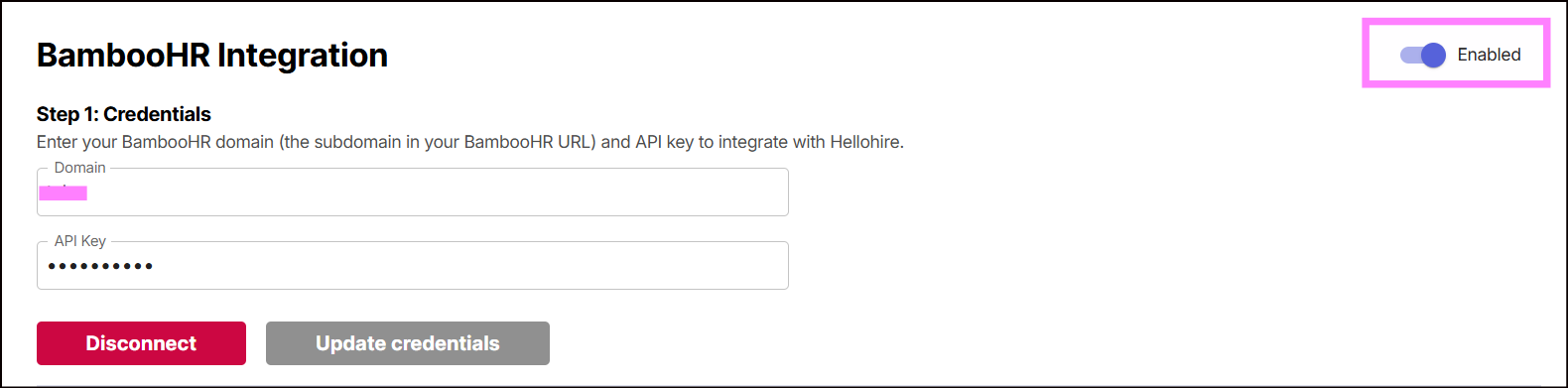
1. Input your Domain and API key
2. Connect and toggle the "Enabled" switch to activate the integration.
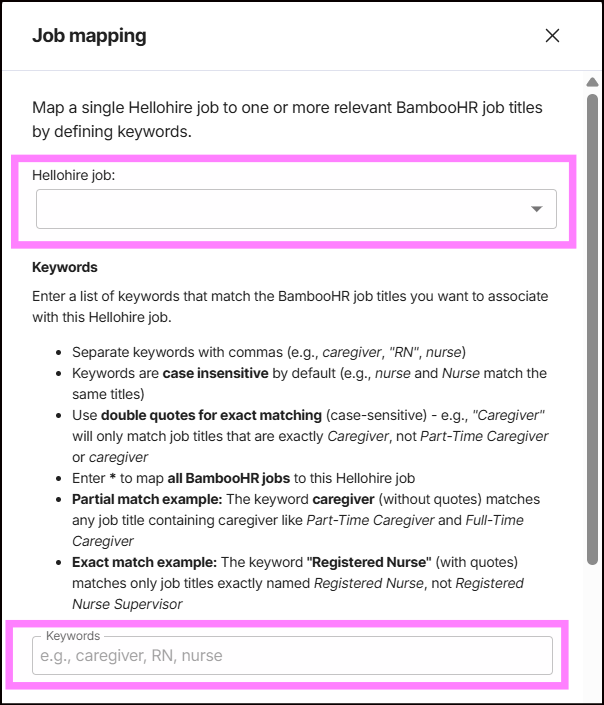
Step 3: Set Up Job Mapping
Hellohire will automatically engage candidates by email and SMS (text message) for the BambooHR jobs matching your keywords.
To set up Job Mapping:
1. Click "Add Job Mapping".

2. Under Hellohire Job, select the job you want to map.
3. In the Keywords field, enter keywords that match relevant BambooHR job titles.
- Separate multiple keywords with commas (e.g., caregiver, RN, nurse).
- Use * to map all BambooHR jobs to the selected Hellohire job.
Examples:- Keyword: caregiver → Matches titles like "Part-Time Caregiver", "Full-Time Caregiver"
- Keyword: registered nurse → Matches titles like "Registered Nurse Supervisor", "Registered Nurse (RN)"
Note: Keywords are case-insensitive and will automatically apply to any future job postings.
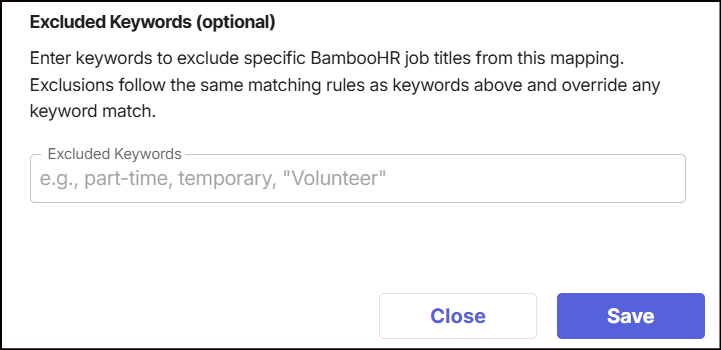
4. Exclude Keyword (optional)
Enter keywords to exclude specific BambooHR job titles from this mapping. Exclusions follow the same matching rules as keywords above and override any keyword match.
5. Click "Save".
What happens after I connect?
- Hellohire automatically syncs with BambooHR.
- New applicants are imported directly into your Hellohire account.
- Candidates appear in your dashboard, ready to move forward in the hiring process.
Need a hand getting set up?
We're here for you! If you have any questions or need help connecting Hellohire to BambooHR, don't hesitate to reach out. You can contact your Account Manager directly or send us an email at support@tryhellohire.com. We're here to make sure everything goes smoothly!
Was this article helpful?
That’s Great!
Thank you for your feedback
Sorry! We couldn't be helpful
Thank you for your feedback
Feedback sent
We appreciate your effort and will try to fix the article