Our Hellohire Jobs Widget makes it easy to showcase your organization’s open positions directly on your website. Below, we’ve answered the most common questions to help you get started and customize your widget exactly how you want it.
1. How does the widget work?
The Hellohire Jobs Widget dynamically displays all active job postings from your Hellohire account. For each job, it shows the Job Details:
Job location
Salary information
Job highlights
Job description
This means that whenever you add, update, or remove jobs in Hellohire, the widget automatically reflects the changes—no manual updates needed on your website.
2. How do I add job details?
All job details are managed directly in your Hellohire account and to add or update the job details:
- Log in to your HelloHire account.
- Go to Jobs from the left-hand menu.
- Locate the Jobs Widget section.
- Click Get Widget Code (appears once a job is Active).
Once saved, enable the job to display on your careers page. Use the embed code to integrate it into your website, and the job details will automatically appear in the widget.
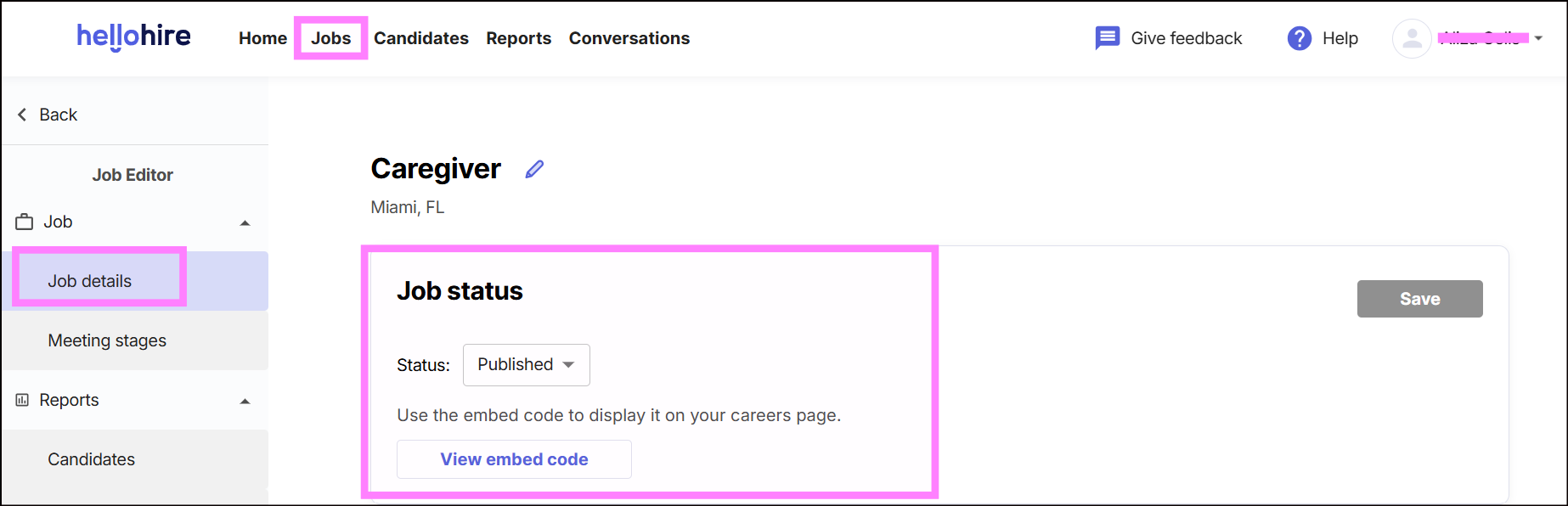 Note: The Widget Code button will only appear for jobs that are Published, not Open or Closed.
Adding a Job to the Widget
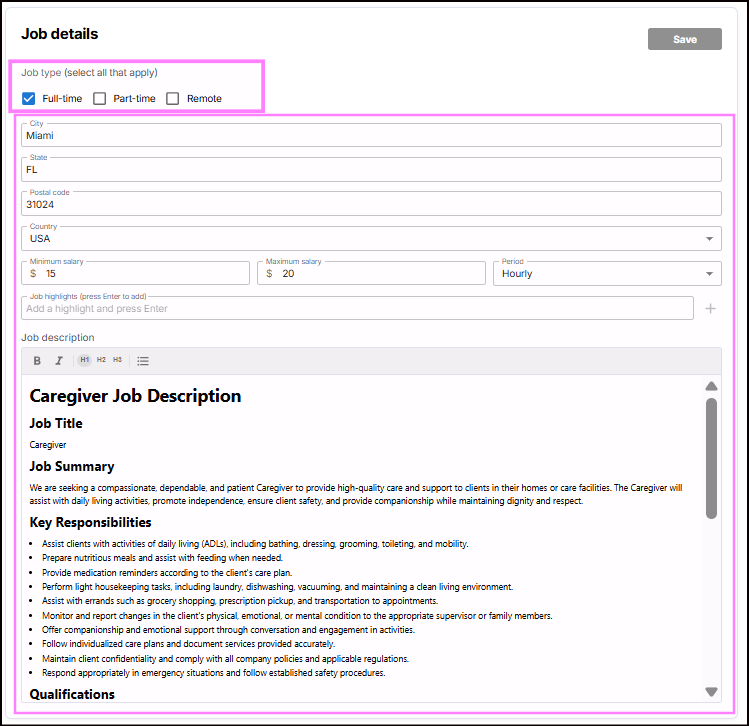
When creating or editing a job, you now have the following options:
Job Location Fields
Job locations are now entered using separate structured fields:
- City
- State / Province
- Postal Code
- Country
Salary Fields
Compensation details are now structured into separate fields:
- Minimum Salary
- Maximum Salary
- Salary Period (e.g., Hourly, Weekly, Monthly, Yearly)
Remote Position
You can flag a position as Full-time, Part-time and Remote
3. Where can I find the embed code?
The embed code is available from your Hellohire management dashboard.
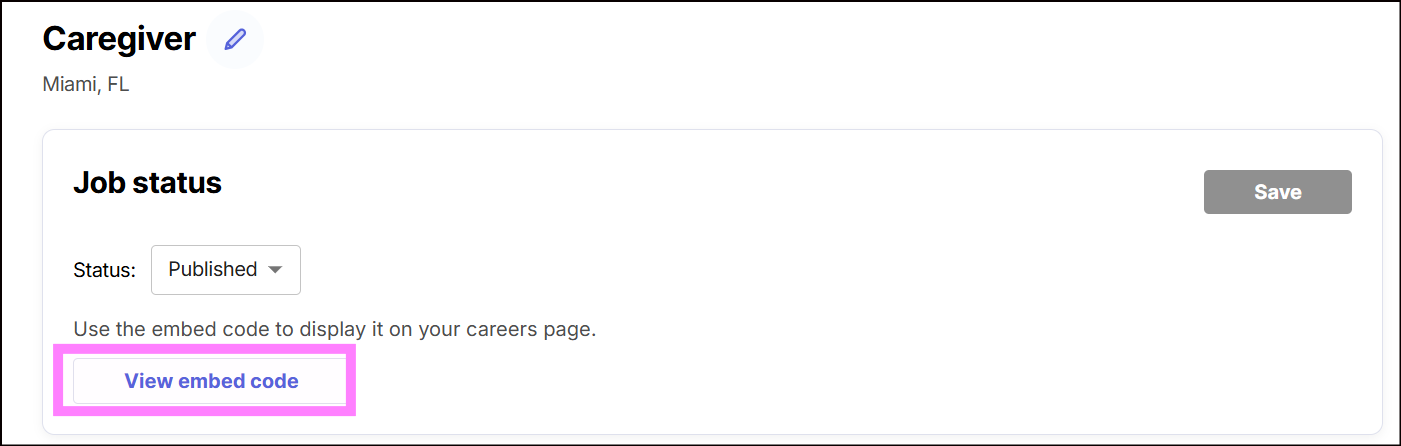
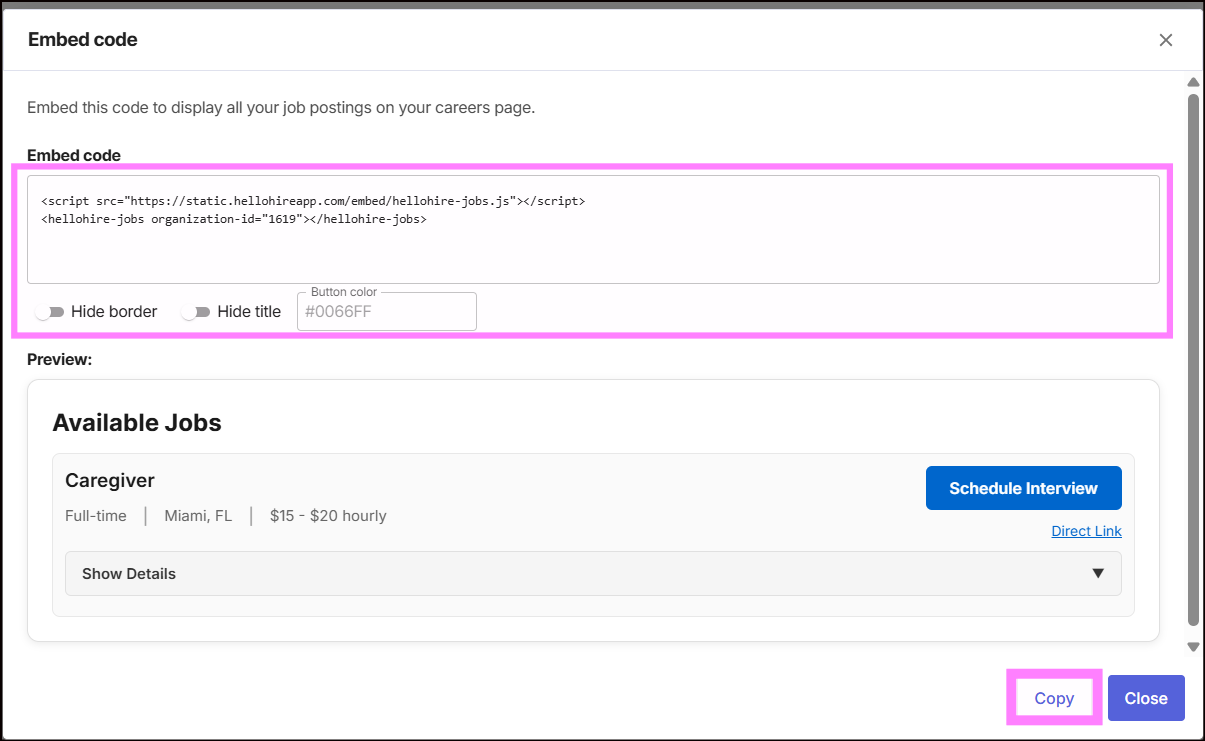
You may find the embed code below the Job Details → Click “View Embed Code” → Then copy the code.
See "5. How do I embed the widget on my website?" for the next step.
4. Can I customize the widget?
Absolutely! The widget offers several simple customizations using attributes in the embed code:
A. Change the button color:
Add button-color="<HEX code>" to match your brand colors. Example:
B. Remove the “Available Jobs” title:
Add the "no-title" attribute. Example:
C. Remove the border around the widget:
Add the "borderless" attribute. Example:
5. How do I embed the widget on my website?
To embed the widget, copy the HTML code (with any customizations you want) and paste it into the HTML of your careers page. Typically, your website manager, IT team, or web developer will handle this step. Once added, the widget will appear instantly and update automatically as you manage jobs in Hellohire.
Hellohire Support
Have questions or need assistance? We’re here to help! Feel free to contact us at support@tryhellohire.com.
Was this article helpful?
That’s Great!
Thank you for your feedback
Sorry! We couldn't be helpful
Thank you for your feedback
Feedback sent
We appreciate your effort and will try to fix the article