Hellohire allows you to easily switch between bulk (back-to-back) and individual (one-on-one) interview scheduling depending on your hiring needs.
Step 1: Log in to Your Hellohire Account
Go to https://www.tryhellohire.com and log in with your credentials.
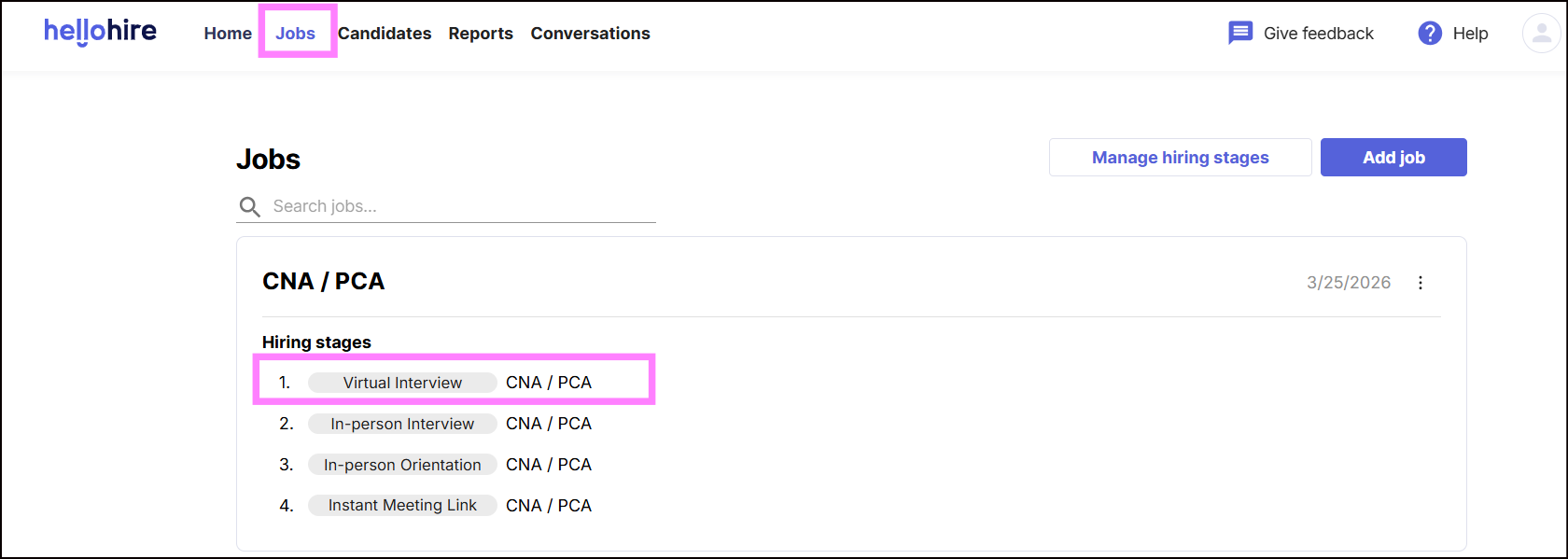
Step 2: Navigate to the Jobs Section
Click “Jobs” in the upper-left corner of your dashboard.
Step 3: Select a Job
Choose the job where you want to update the scheduling setup.
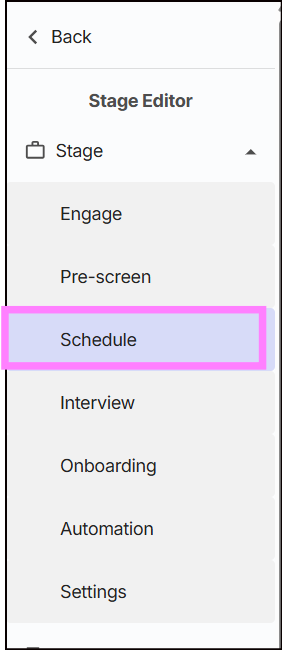
Step 4: Open the Schedule Tab
- In the right-hand menu, click the “Schedule” tab.
- Set your Interview Length.
- Choose how many days in advance candidates can schedule.

- Click “Edit Calendar” to manage availability.

Step 5: Choose Your Scheduling Type
You’ll see two scheduling options. You can switch between them anytime:
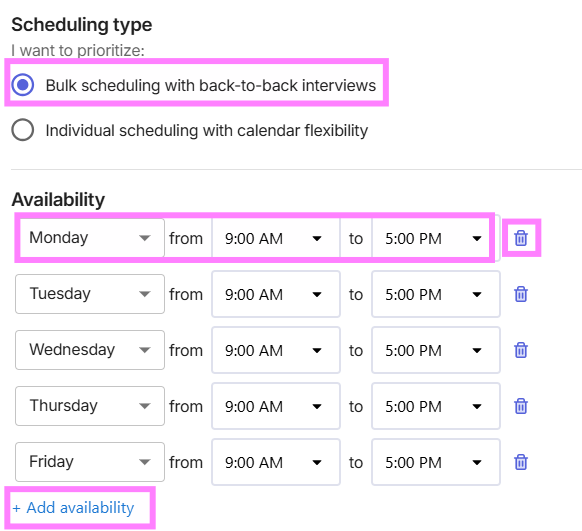
Option 1: Bulk Scheduling (Back-to-Back Interviews)
Ideal for interviewing multiple candidates in a single time block, such as a 1-hour session divided into 10-minute slots for up to 6 candidates.
How to set up:
1. Add your availability by selecting the days and times you’re available.
- Click “+ Add Availability” to add more slots.
- Click the trash icon to remove a time slot.
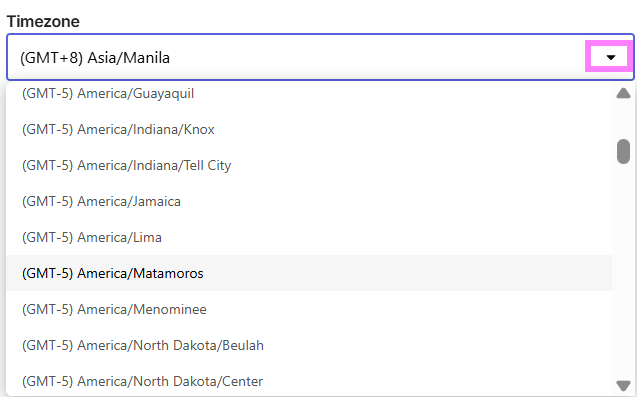
2. Select your timezone from the dropdown menu.
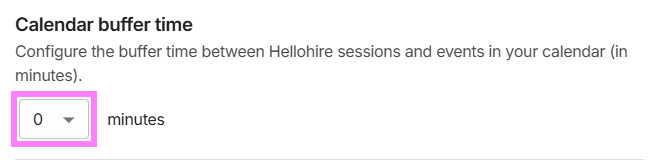
3. Set Calendar Buffer Time — choose the amount of time (in minutes) between Hellohire sessions and other events in your calendar.
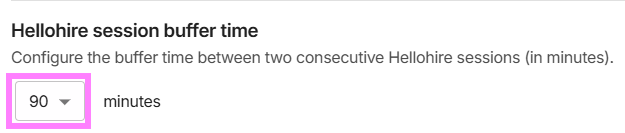
4. Set Hellohire Session Buffer Time — choose the time (in minutes) between back-to-back interview sessions.
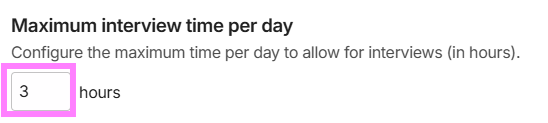
 5. Set Maximum Interview Time Per Day — define how many hours per day you’re available for interviews.
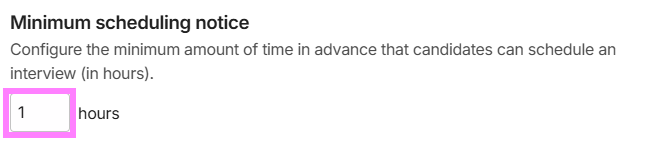
6. Set Minimum Scheduling Notice — decide how far in advance (in hours) candidates must schedule.
7. Click Save to apply your settings.
Option 2: Individual Scheduling (One-on-One Sessions)
Ideal for one-on-one interviews where each candidate books a separate time slot, providing more flexibility and control over your schedule.
How to set up:
1. Add your availability by selecting days and times.
- Click “+ Add Availability” to add more.
- Use the trash icon to remove any slot.
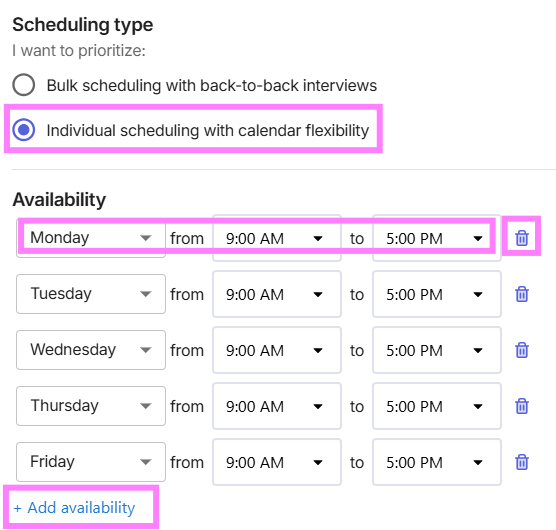
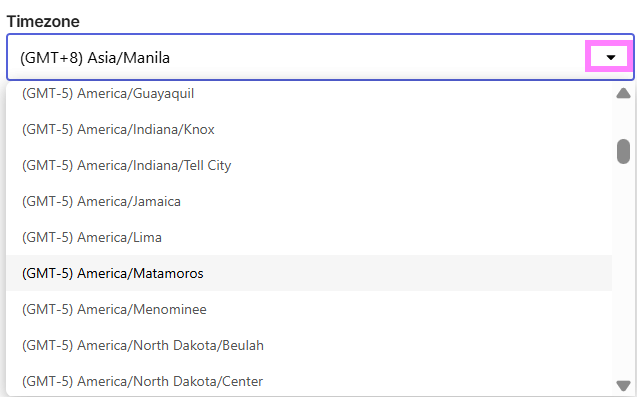
2. Select your timezone from the dropdown.
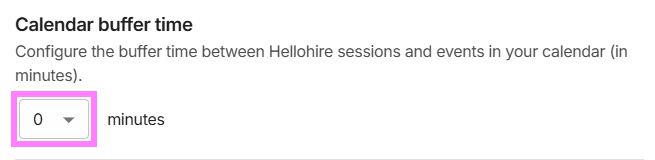
3. Set Calendar Buffer Time — define the buffer time between Hellohire sessions and other calendar events.
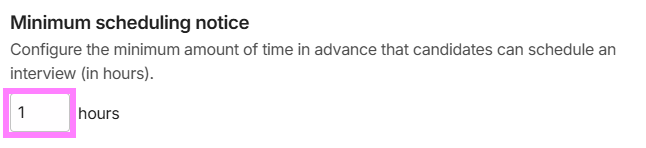
4. Set Minimum Scheduling Notice — define how many hours in advance a candidate must schedule.
5. Click Save to apply your settings.
Switching Between Scheduling Types
Bulk → Individual
- Select Individual Scheduling
- Adjust availability if needed
- Click Save
What changes:
- Interviews are no longer back-to-back
- Each candidate books a separate time slot
- These settings will no longer apply:
- Hellohire Session Buffer Time
- Maximum Interview Time Per Day
Individual → Bulk
- Select Bulk Scheduling
- Configure time blocks and settings
- Click Save
What changes:
- Candidates are scheduled back-to-back within defined availability blocks (e.g., a 1-hour block with 10-minute slots for up to 6 candidates).
- Additional settings become available:
- Hellohire Session Buffer Time
- Maximum Interview Time Per Day
Which Should I Use?
- Bulk Scheduling → best for high-volume, continuous interviewing
- Individual Scheduling → best for flexible, spaced-out interviews
Hellohire Support
Have questions or need assistance? We’re here to help! Feel free to contact us at support@tryhellohire.com.
Was this article helpful?
That’s Great!
Thank you for your feedback
Sorry! We couldn't be helpful
Thank you for your feedback
Feedback sent
We appreciate your effort and will try to fix the article