Webhooks are a tool that allow clients to automatically transfer data from Hellohire into their own systems, triggered by specific events—such as when a candidate receives a “yes” or “hired” status. When triggered, the webhook sends candidate information to a specified client URL, including details like first name, last name, email address, phone number, and links to the candidate’s interview report and resume. Clients also have the option to include custom data fields.
Follow the steps below to configure these settings for a specific job.
Step 1: Log In to Your Hellohire Account
Go to https://www.tryhellohire.com and log in using your credentials.
Step 2: Navigate to the Jobs Section
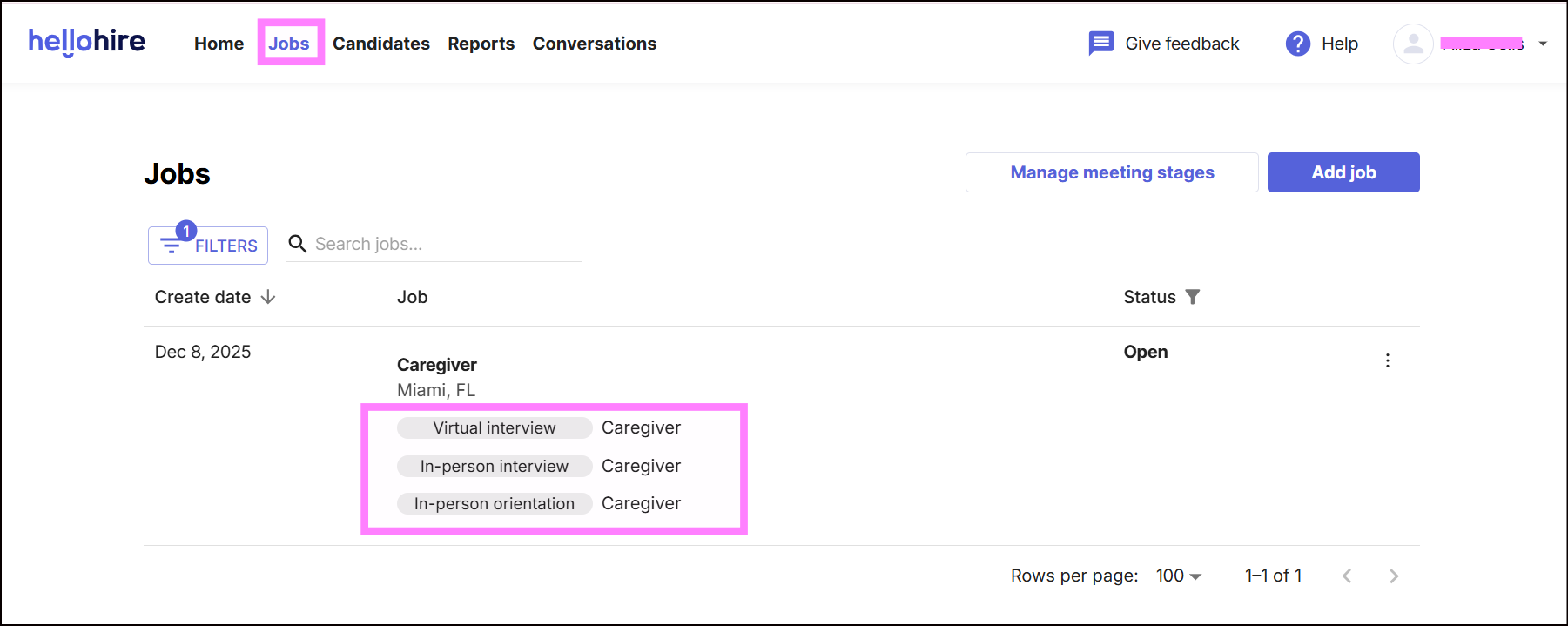
Click “Jobs” in the upper left corner of your screen.

Step 3: Select the Job
Choose the job for which you want to update the settings.
Step 4: Open the Settings Tab
Click on the “Settings” tab. From here, you can manage the following: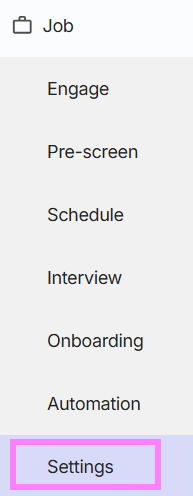
To set up a webhook:
1. Add your webhook URL – This is the endpoint in your system that will receive the data.
2. Select your trigger events – Choose the events that will trigger the webhook (e.g., “yes” or “hired” candidate status).
3. Add custom data (optional) – Include any additional information you want sent with each webhook notification.
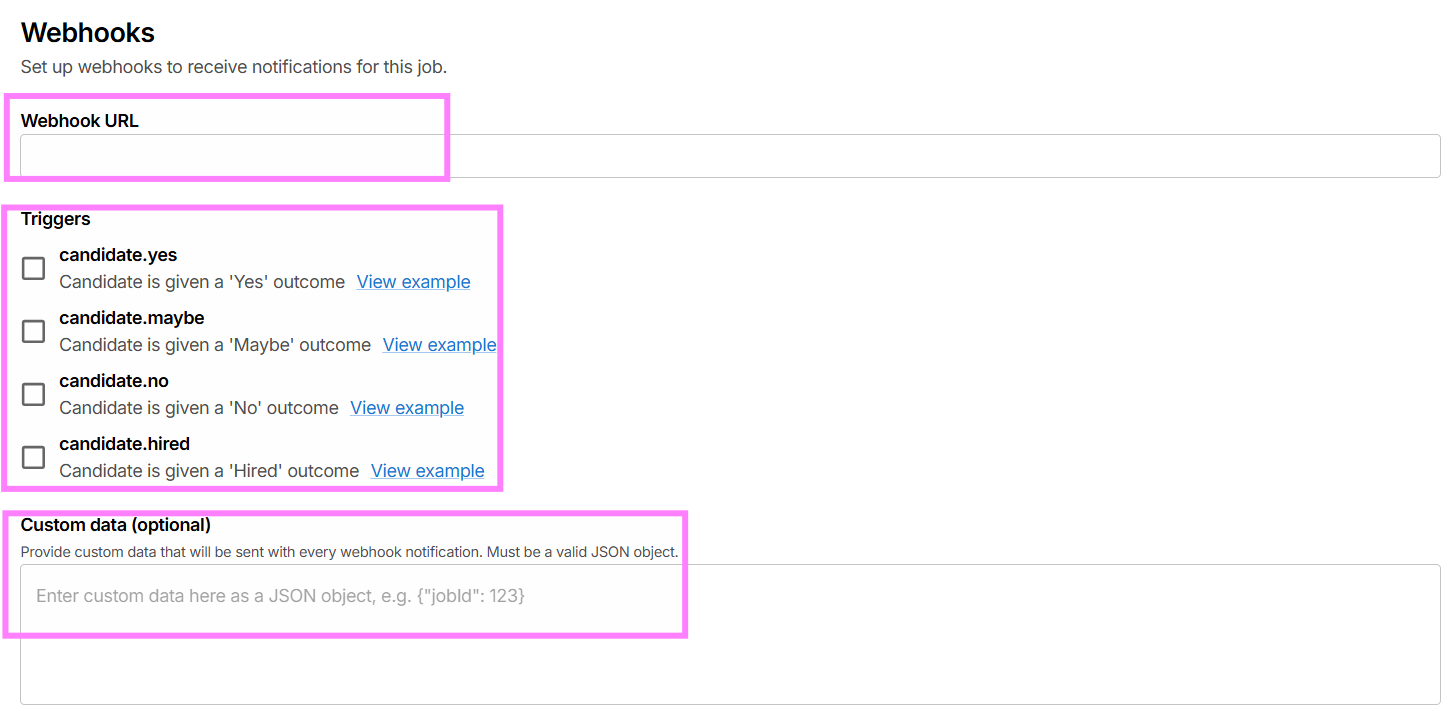
 Note: Configure up to three webhooks to receive notifications based on candidate outcomes.
Hellohire Support
Have questions or need assistance? We’re here to help! Feel free to contact us at support@tryhellohire.com.
Was this article helpful?
That’s Great!
Thank you for your feedback
Sorry! We couldn't be helpful
Thank you for your feedback
Feedback sent
We appreciate your effort and will try to fix the article