Welcome to Conversations — your central hub for staying connected with candidates throughout the hiring process. Whether you're sending a quick update, following up after an interview, or coordinating next steps, Conversation keeps everything organized in one place.
This guide walks you through the most common questions so you can get up and running quickly.
How do I get to the Conversations section?
1. Log in to your Hellohire account: https://www.tryhellohire.com
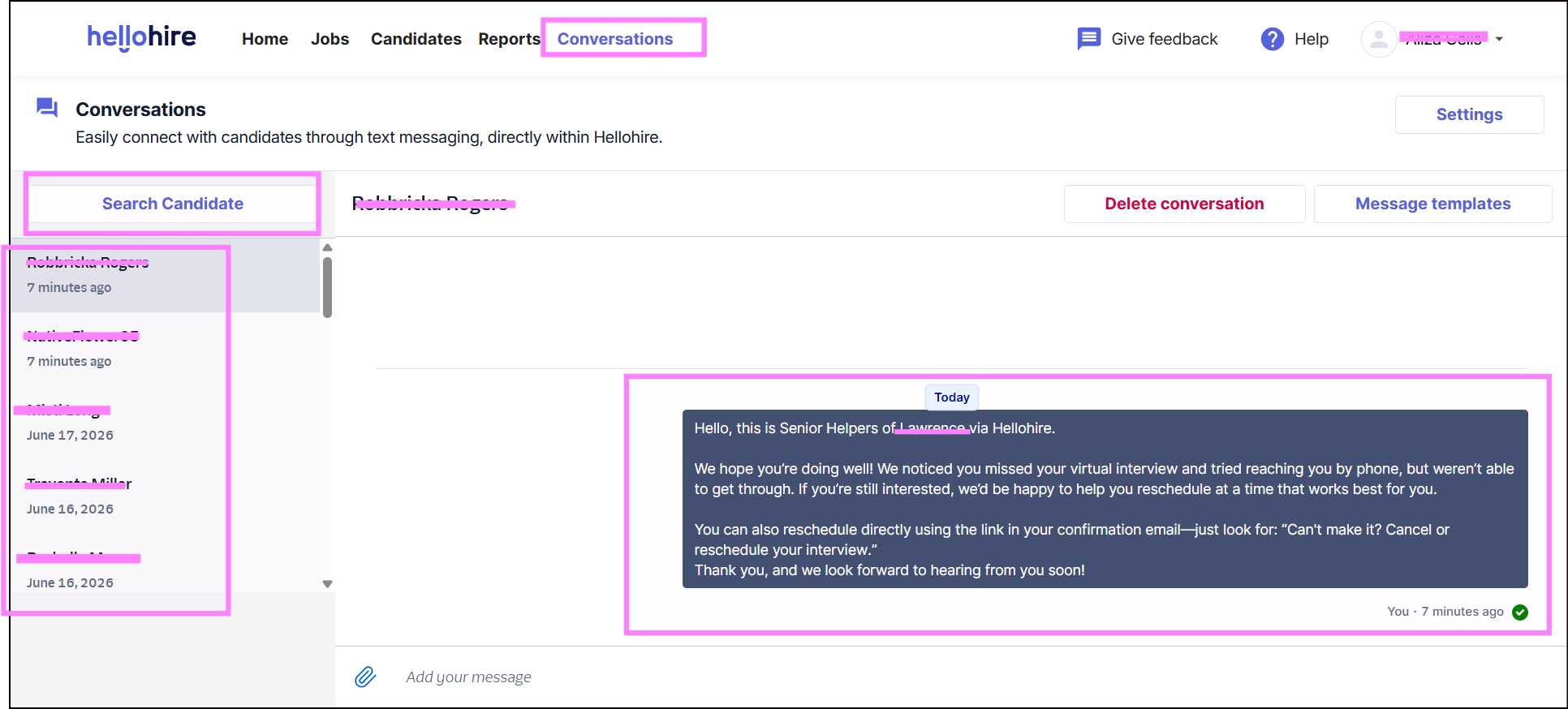
2. Navigate to "Conversations"

What does the Conversations inbox show?
The inbox lists all active candidate threads in one place. Each thread shows the candidate's name, the last message sent, and a timestamp. Unread messages are highlighted so you can quickly spot new replies.
How do I search for a candidate?
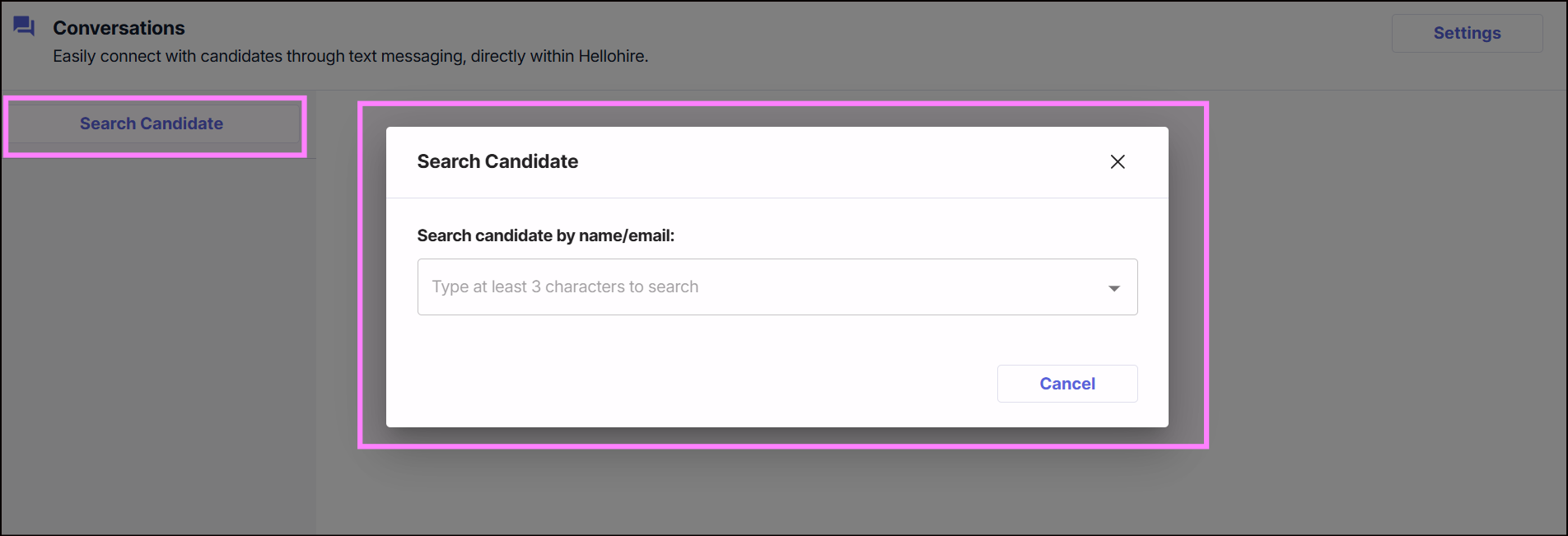
1. In the Conversations page, click the "Search Candidate" button.
2. Type the candidate's name or email address in the field that appears.
Can I save and reuse message templates?
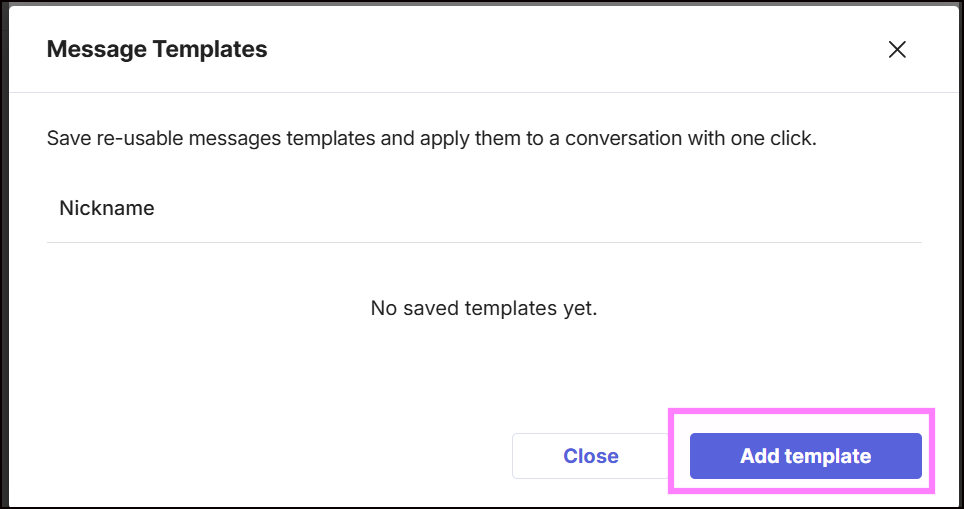
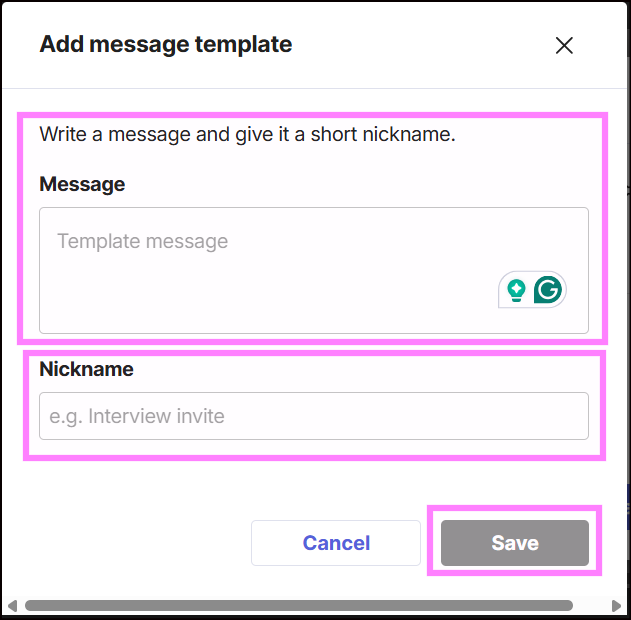
Yes — Conversations now supports stored message templates. You can create reusable messages for common situations like interview invites, follow-ups, or rejection notices.
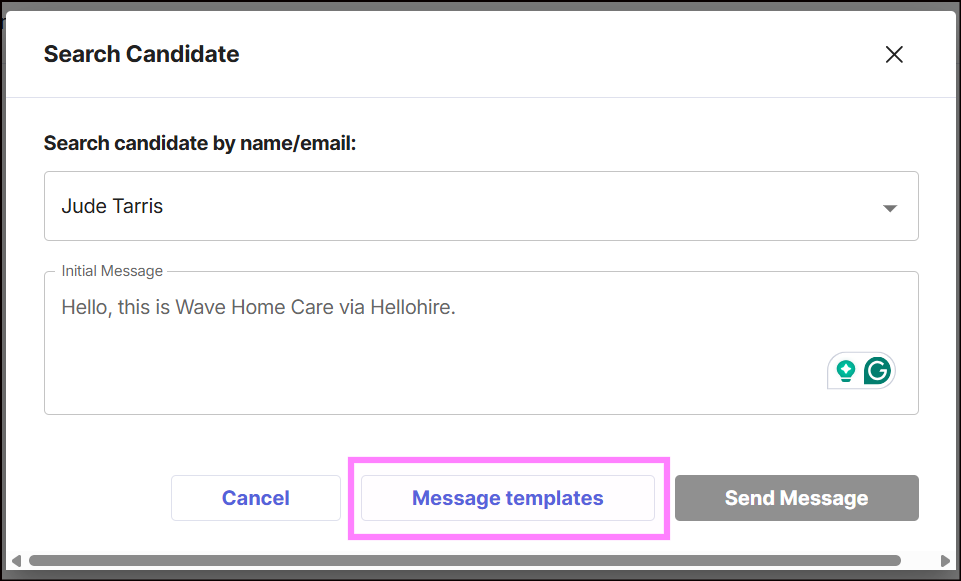
1. While composing a message, click the "Message templates" icon.
2. Select an existing template to pre-fill your message, or save a new one.
Can I be notified when a candidate replies?
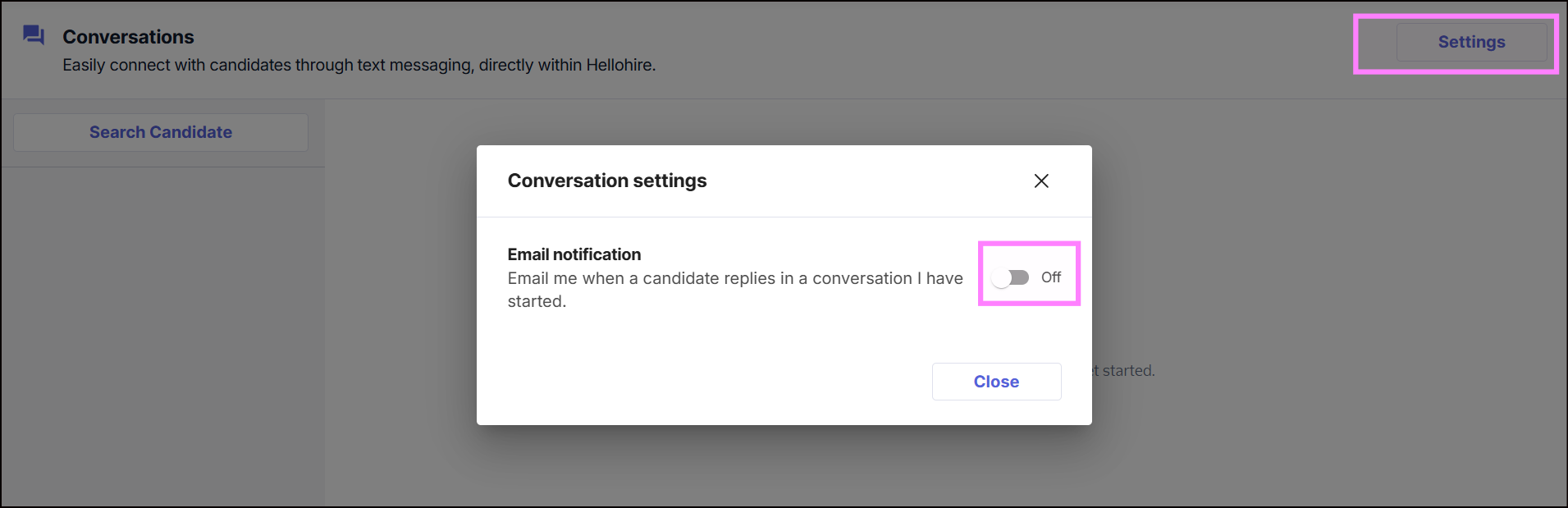
Yes. There's a new opt-in setting in Conversations that notifies the recruiter when a candidate replies to their message.
How it works
- The setting is disabled by default — you need to turn it on in your Conversations settings.
- Notifications are only sent to the recruiter who initiated the conversation.
- Only applies to new conversations started after the setting is enabled. Existing conversations are not affected.
- The notification sends 5 minutes after the candidate replies — giving you time to read it first.
- If you read the message within those 5 minutes, no notification is sent.
Hellohire Support
Have questions or need assistance? We’re here to help! Feel free to contact us at support@tryhellohire.com.
Was this article helpful?
That’s Great!
Thank you for your feedback
Sorry! We couldn't be helpful
Thank you for your feedback
Feedback sent
We appreciate your effort and will try to fix the article