The Clone Meeting Stage feature allows you to copy an existing meeting stage from one job to another without having to set up the stage from scratch.
You can copy important stage settings, such as screening questions and meeting type, and choose whether the new stage should share its scheduling with the original stage.
What is this for?
This feature is useful when you have similar meeting stages across different jobs.
For example, if two jobs use the same screening questions and meeting type, you can clone the existing stage instead of creating a new one manually.
When creating the clone, you can choose between:
- Share scheduling – Both jobs use the same sessions, capacity, calendar, and interview space.
- Do not share scheduling – The new stage has its own sessions, calendar, capacity, and interview space.
How to Clone a Meeting Stage
Step 1: Open the job
- Open the job where you want to add the cloned meeting stage.
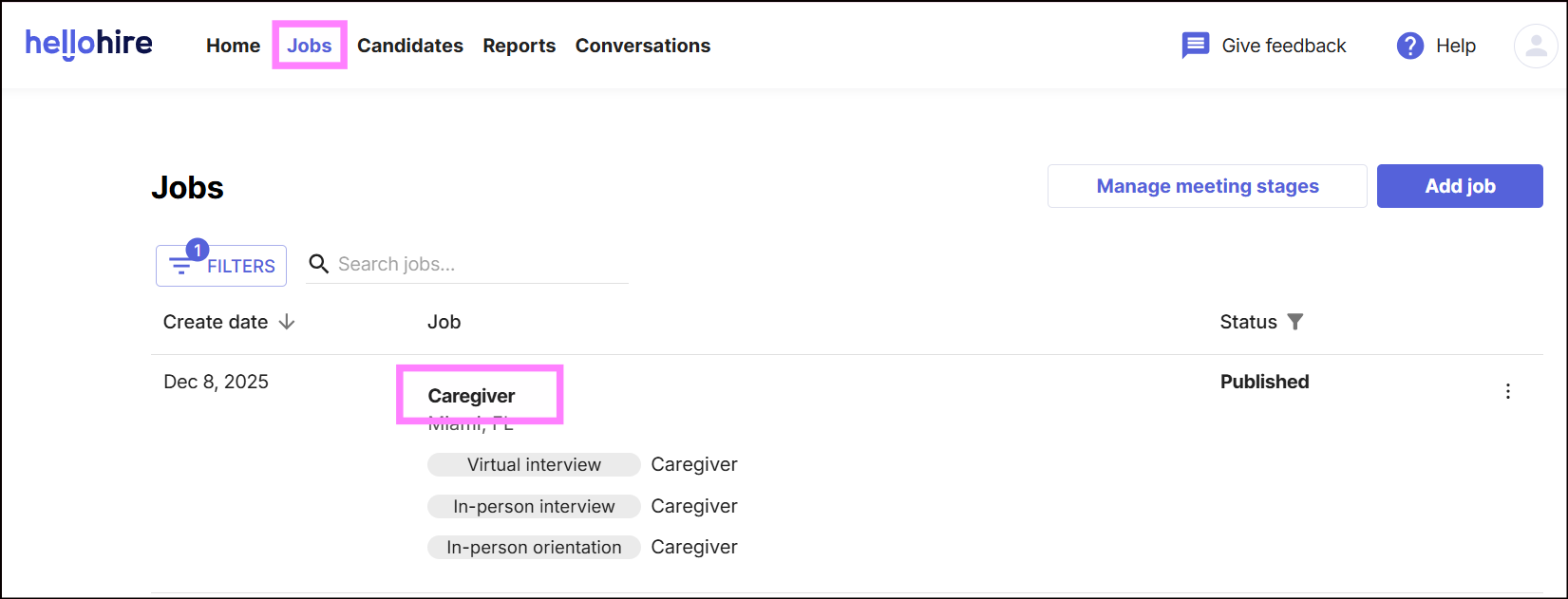
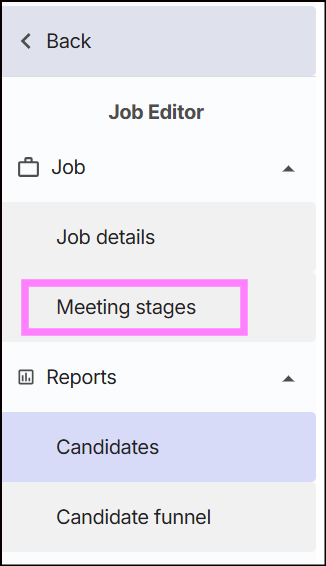
- Click Meeting Stage.
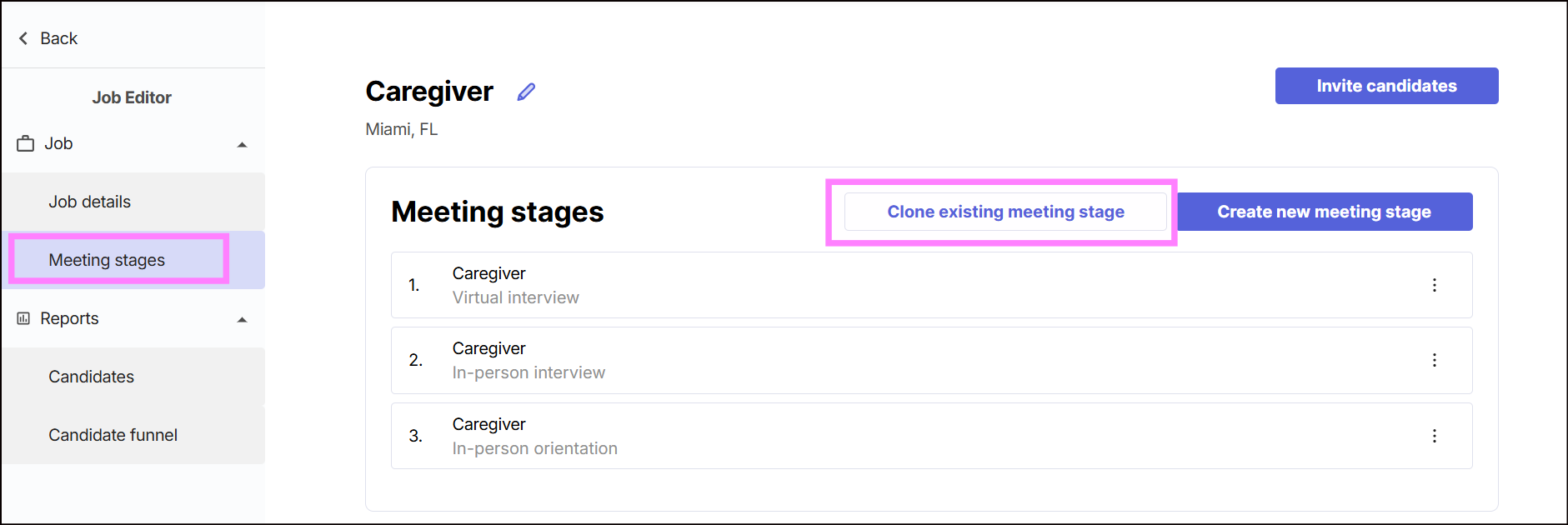
Step 2: Select "Clone existing meeting stage"
- Select Clone existing meeting stage. This allows you to choose an existing meeting stage from another job in the same organization.
Step 3: Select the stage you want to copy
- Select the meeting stage you want to clone.
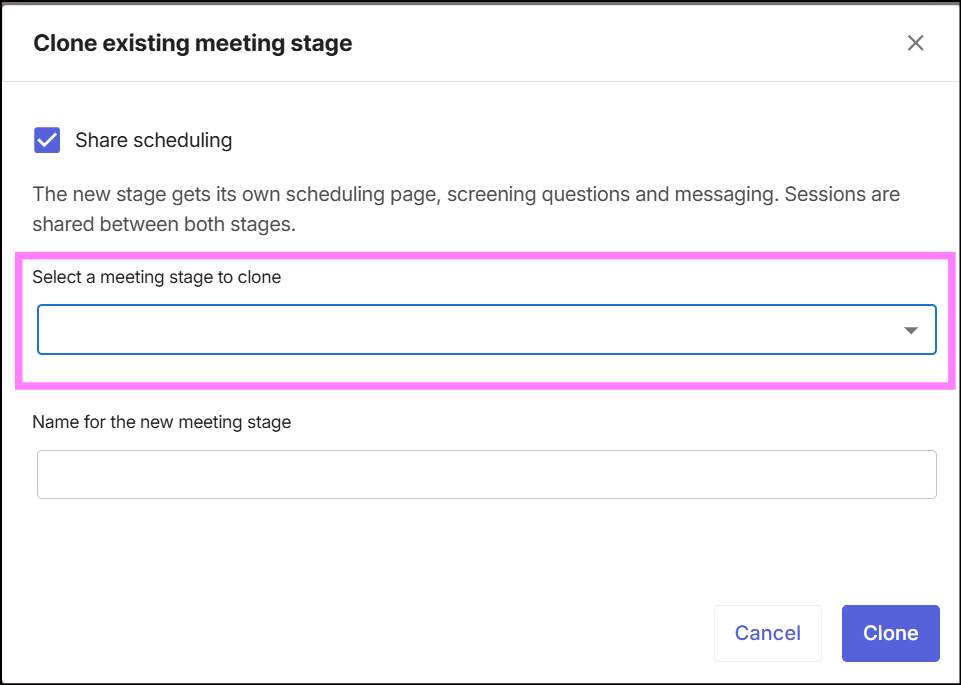
- The meeting stage name will automatically populate in the name field. You can change the name if needed.
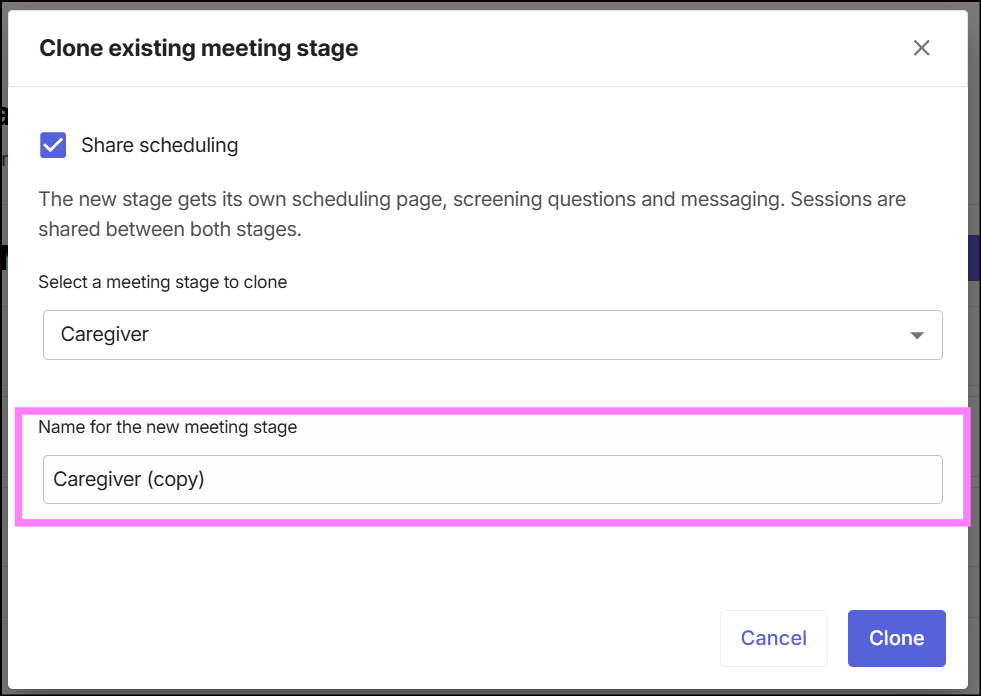
Tip: If you enter your own stage name before selecting another stage, your custom name will not be overwritten.
Step 4: Choose whether to share scheduling
- You will see the Share scheduling checkbox at the top of the window. It is turned on by default.
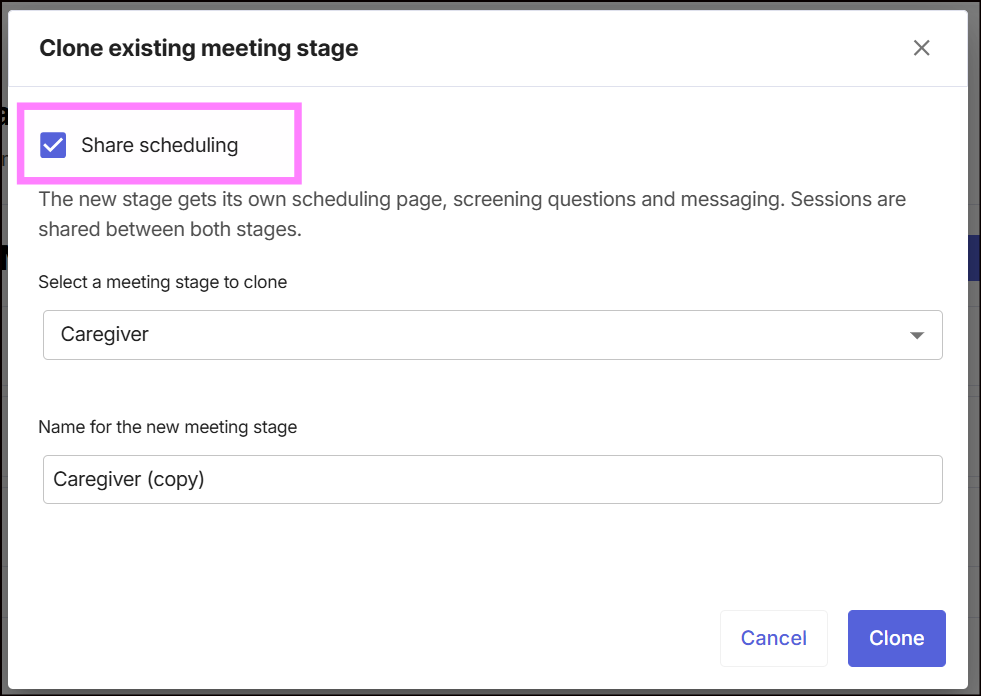
What Does "Share Scheduling" Mean?
When Share scheduling is ON, the cloned stage will share the original stage's:
- Sessions
- Session capacity
- Calendar
- Available hours
- Interview space
This means candidates from both jobs can book the same sessions.
Example:
Job A → Original Stage
Job B → Cloned Stage
Both stages use the same schedule.
If a candidate books a session through Job A, that booking also counts toward Job B's capacity.
When Share scheduling is OFF
The cloned stage will have its own separate scheduling.
It will have its own:
- Sessions
- Session capacity
- Calendar
- Available hours
- Interview space
- Scheduling link
Example:
Job A → Original Stage → Original schedule
Job B → Cloned Stage → Separate schedule
Changes made to one stage will not affect the other.
Quick Comparison
| Shared Scheduling | Separate Scheduling | |
|---|---|---|
| Screening questions | Copied | Copied |
| Meeting type | Copied | Copied |
| Scheduling link | New | New |
| Sessions | Shared | Separate |
| Capacity | Shared | Separate |
| Calendar | Shared | Separate |
| Available hours | Shared | Separate |
| Interview space | Shared | Separate |
Share scheduling ON:
Use this when you want different jobs to use the same sessions and interview space.
Share scheduling OFF:
Use this when you want to copy the stage setup but give the new job a completely separate schedule and interview space.
Important: The original and cloned stages must belong to jobs within the same organization.
Hellohire Support
Have questions or need assistance? We’re here to help! Feel free to contact us at support@tryhellohire.com.
Was this article helpful?
That’s Great!
Thank you for your feedback
Sorry! We couldn't be helpful
Thank you for your feedback
Feedback sent
We appreciate your effort and will try to fix the article