Hellohire lets you add a Phone call stage to your job. Candidates can choose a time and enter their phone number. The recruiter will call them at the selected time.
You can also schedule a call for a candidate yourself.
How to Add a Phone Call Stage
Step 1: Open Your Job
Log in to your Hellohire account and click Jobs.

Select the job where you want to add the Phone call stage.

Step 2: Add a Meeting Stage
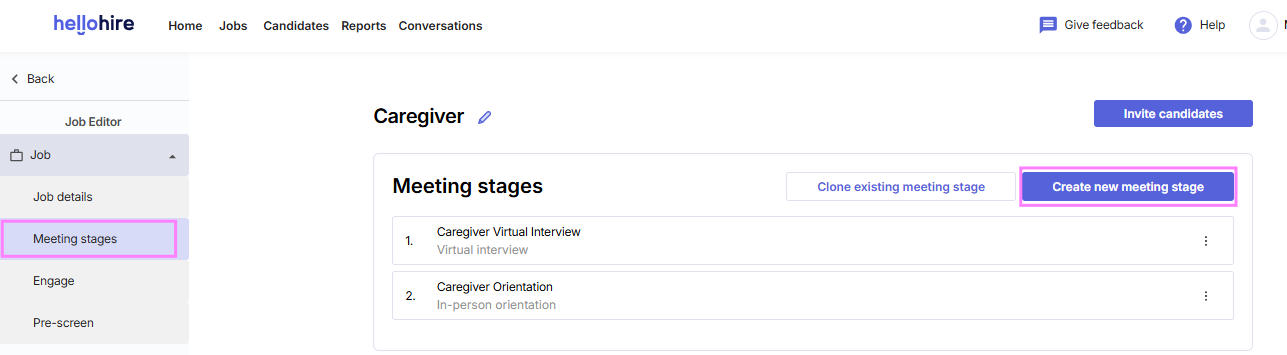
Click Meeting stages and select Create new meeting stage.
Step 3: Enter the Stage Details
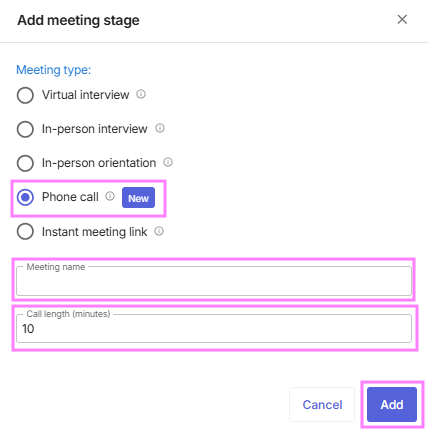
Enter the following:
Meeting name: Give your stage a name, such as Phone Screen.
Call length (minutes): Enter how many minutes the call will take.
Click Add.
How to Schedule a Call for a Candidate
Step 1:
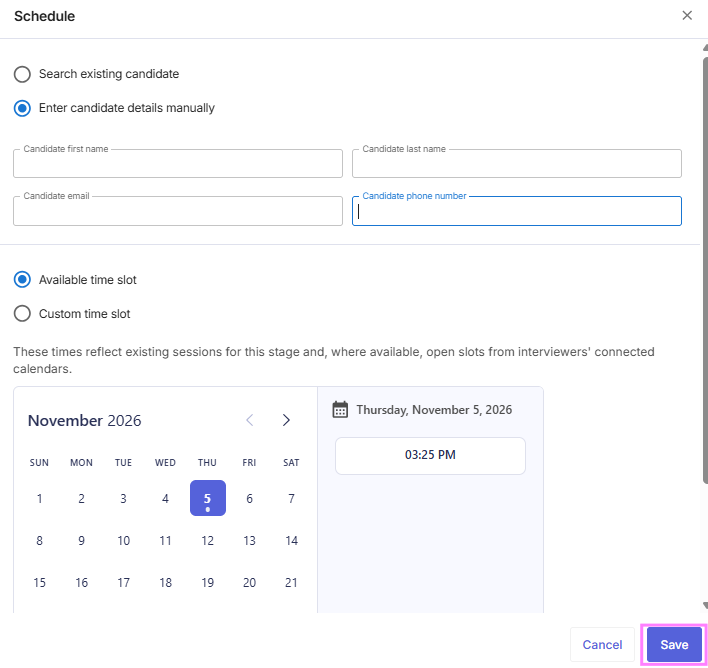
Open the Phone call stage and click "Schedule call".

Step 2: Select or Add a Candidate
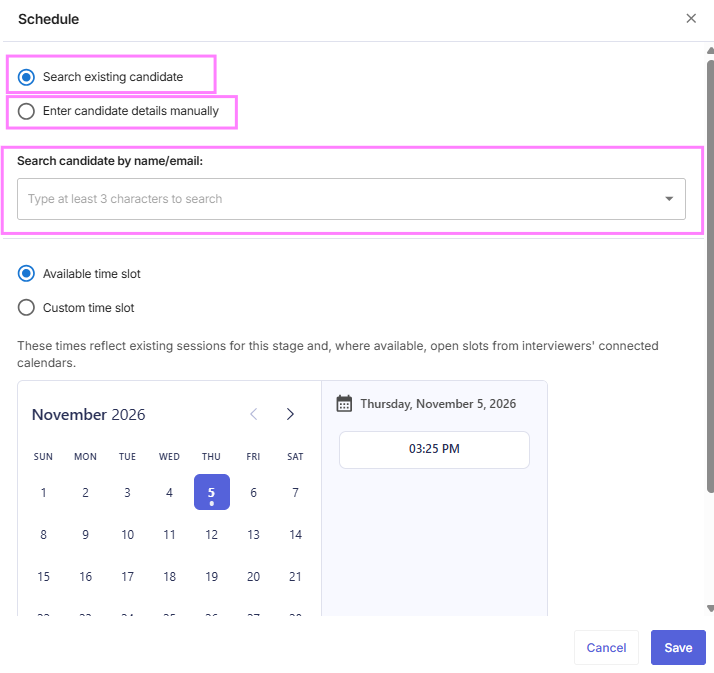
Search for an existing candidate or enter a new candidate's details.
Step 3: Enter a Phone Number
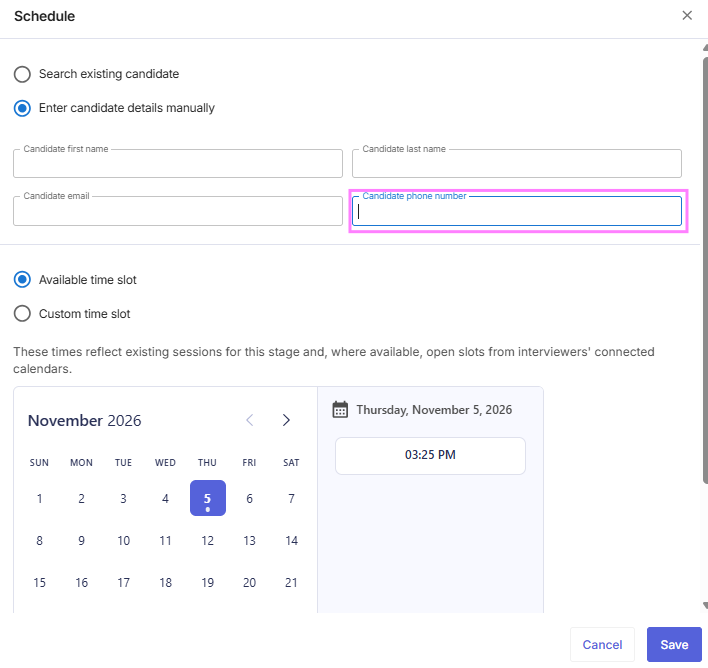
Enter a valid phone number for the candidate.
You cannot schedule or reschedule a call if the candidate does not have a valid phone number.
Step 4: Save the Booking
Choose an available time and save the booking.
The candidate will receive a confirmation email.
What Happens After the Call?
After the scheduled call time ends, the candidate's status automatically changes from Scheduled to No outcome.
You can then update the candidate's result.
Important Notes
Candidates must enter a valid phone number to book a call.
The recruiter calls the candidate at the scheduled time.
Phone call stages use the words "call" or "phone call" instead of "interview."
Hellohire Support
Have questions or need assistance? We’re here to help! Feel free to contact us at support@tryhellohire.com.
Was this article helpful?
That’s Great!
Thank you for your feedback
Sorry! We couldn't be helpful
Thank you for your feedback
Feedback sent
We appreciate your effort and will try to fix the article