Hellohire allows you to customize the email and text reminders candidates receive before their scheduled interviews or orientations. You can also customize the confirmation email candidates receive after booking an interview.
These settings are available for each individual stage, allowing you to personalize the messages, choose when they are sent, and include relevant details such as the candidate's name, job title, interview date and time, and interview link.
How to Customize Interview Reminders and Confirmation Emails
Step 1: Log in to Your Hellohire Account
Go to https://www.tryhellohire.com and log in using your credentials.
Step 2: Navigate to the Jobs Section
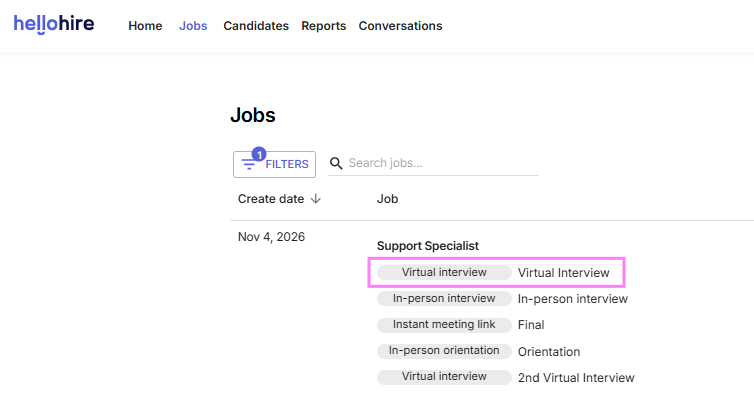
Click "Jobs" in the upper-left corner of your dashboard and select the job for which you want to customize the reminders and confirmation emails.

Step 3: Select a Stage
Open the specific stage you want to customize, such as a Virtual Interview, In-person Interview, or Orientation stage.
Step 4: Go to the Automation Tab
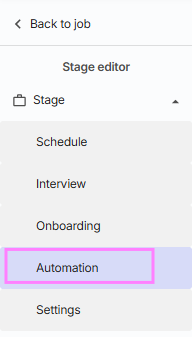
Within the selected stage, click the "Automation" tab.
Here, you will find the following settings:
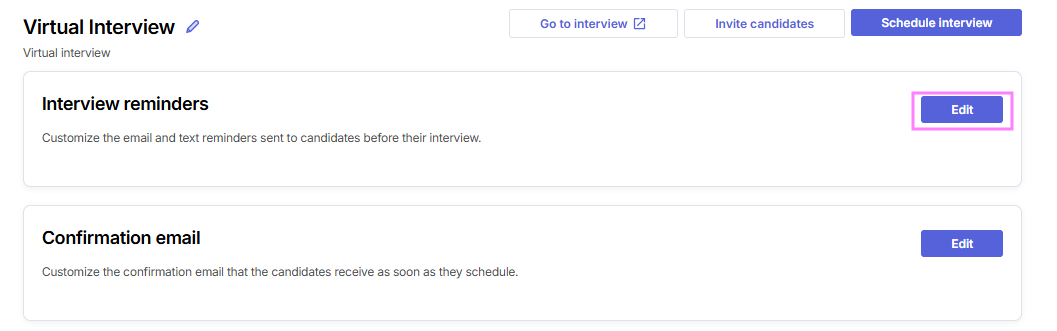
Interview reminders: Customize the email and text reminders sent before a scheduled interview.
Confirmation email: Customize the confirmation email candidates receive after scheduling.
Orientation reminders: For Orientation stages, customize the reminders sent before a scheduled orientation.
How to Customize Interview or Orientation Reminders
Step 1:
Under the Automation tab, locate the "Interview reminders" card or "Orientation reminders" card, depending on the stage.
Click "Edit" to open the reminder settings.
Step 2:
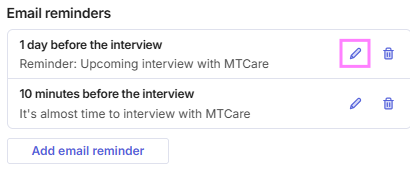
Under the "Email reminders" section, you can customize the emails candidates receive before their scheduled interview or orientation.
You can:
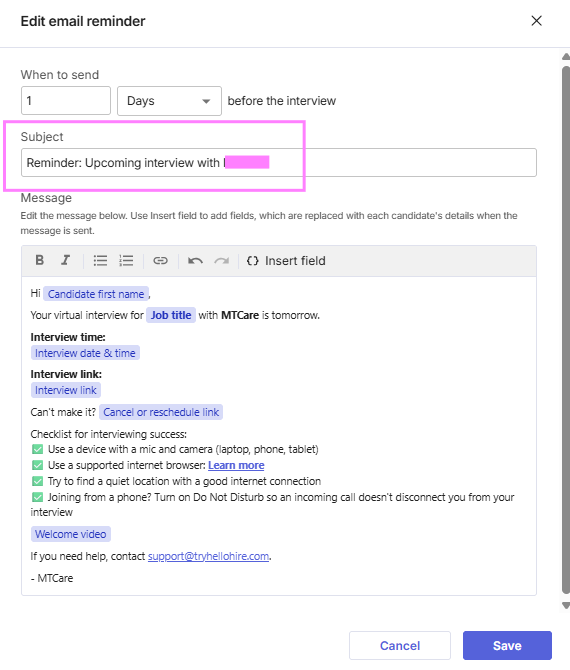
Edit the email subject and message.
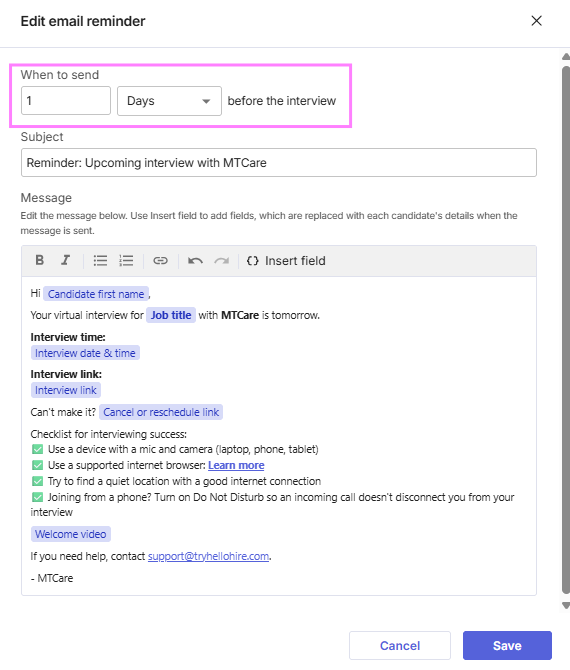
Choose when the reminder should be sent, whether minutes, hours, or days before the scheduled event.
Add or edit available information fields, such as the candidate's first name, job title, interview date and time, and interview link.
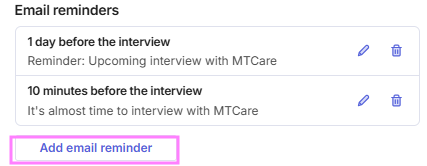
To add another email reminder, click "Add email reminder" and customize its send time, subject, and message.
Step 3: Edit Text Reminders
Under the "Text reminders" section, you can customize the SMS messages candidates receive before their scheduled interview or orientation.
You can:
Edit the text message.
Choose when the reminder should be sent.
Insert available information fields into your message to automatically populate relevant details.
The available text field options are:
Candidate first name
Job title
Interview date & time
Interview link
Location (available for In-person and Orientation stages only)
To add a field, select the desired option from the text field menu. The selected field will be inserted into your message.
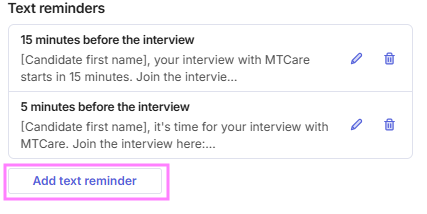
To add another text reminder, click "Add text reminder" and customize the message and send time.
Click "Reset to defaults" if you want to restore the original reminder messages and send times.
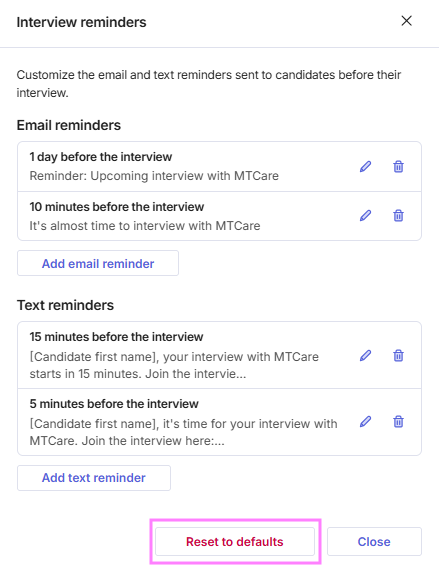
Once you have finished making changes, click "Save".
Note: Each reminder must have a unique send time within its respective email or text reminder section. The system will display an error if the send time or message does not meet the required conditions.
How to Customize the Confirmation Email
Step 1: Locate the Confirmation Email Card
From the selected stage's Automation tab, find the "Confirmation email" card.
Click "Edit" to open the email settings.
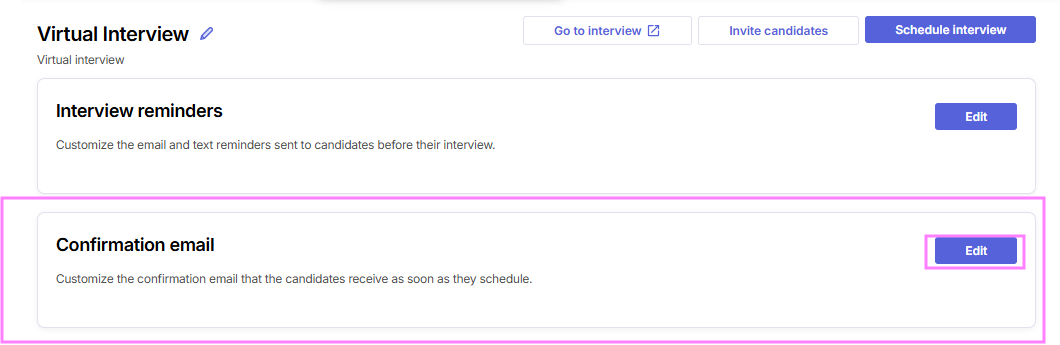
Step 2: Edit the Confirmation Email
You can customize the confirmation email by updating:
Subject: Change the subject line of the email.
Message: Edit the email content to include information relevant to your candidates.
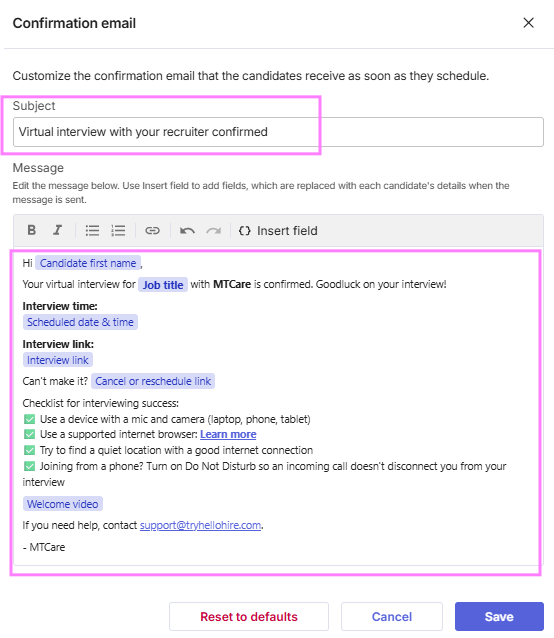
You can use the available information fields to automatically populate candidate and interview details.
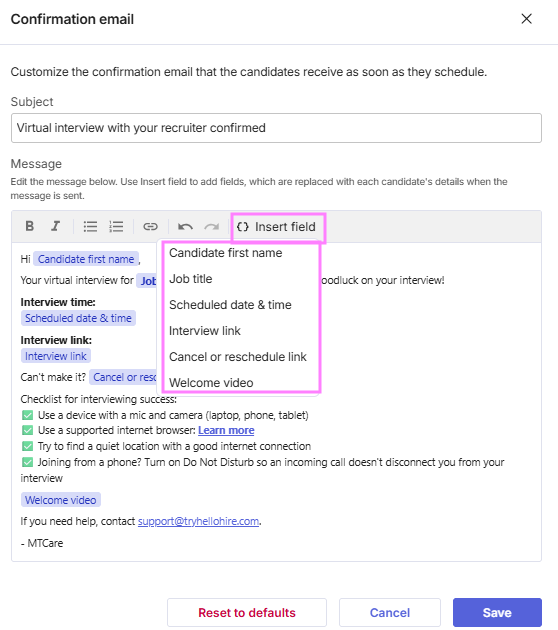
Step 3: Save Your Changes
Once you have finished editing the subject and message, click "Save".
Note: The confirmation email is required and cannot be turned off. Candidates will continue to receive a confirmation email after booking an interview or orientation.
Important Notes
Reminder and confirmation email settings are managed separately for each stage. Changes made to one stage will not automatically apply to other stages.
Each stage supports up to three email reminders and three text reminders.
At least one email reminder and one text reminder must remain enabled for each stage.
Default reminder and confirmation messages are automatically applied to stages that have not been customized.
Instant Meeting Link stages are not affected by this update and will continue using their existing confirmation email behavior without the new reminder settings.
Hellohire Support
Have questions or need assistance? We’re here to help! Feel free to contact us at support@tryhellohire.com.
Was this article helpful?
That’s Great!
Thank you for your feedback
Sorry! We couldn't be helpful
Thank you for your feedback
Feedback sent
We appreciate your effort and will try to fix the article