In this article, we’ll show you two simple ways to manually add candidates in Hellohire and invite them to schedule an interview.
Upload a list of candidates
Add a single candidate
Once added, Hellohire will automatically engage candidates by email and text message (Canada and US mobile numbers only).
Where to Find These Options:
Go to your job in Hellohire.
Click Invite candidates.

Under Manually add candidates, you will see:
Upload a list
Add single candidate
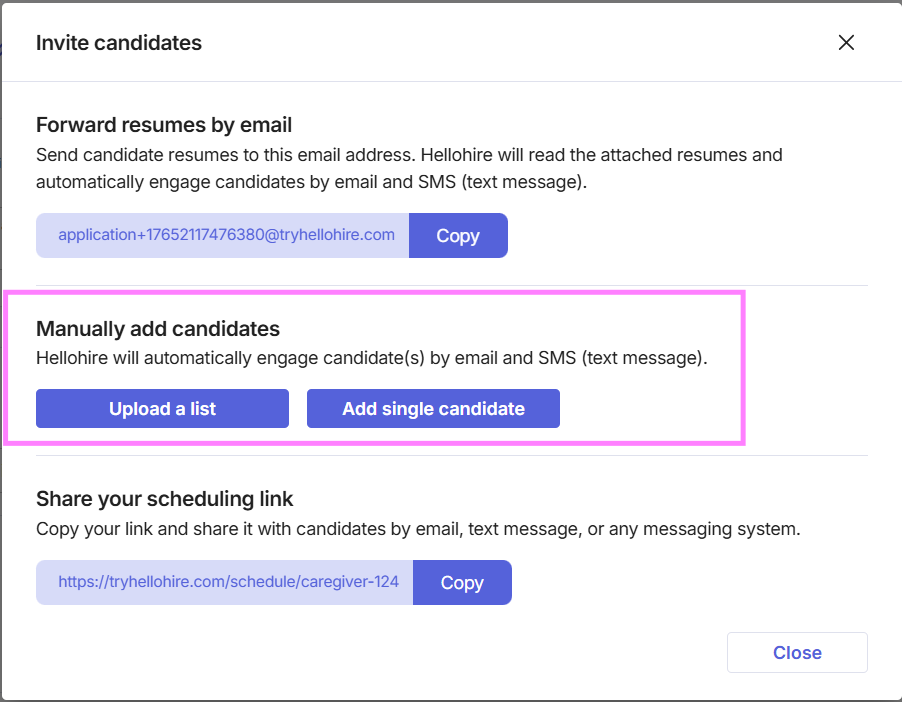
How to Upload a List of Candidates:
Uploading a list is the fastest way to add multiple candidates at once.
Step-by-Step Instructions:
Click Invite candidates.
Under Manually add candidates, select Upload a list.
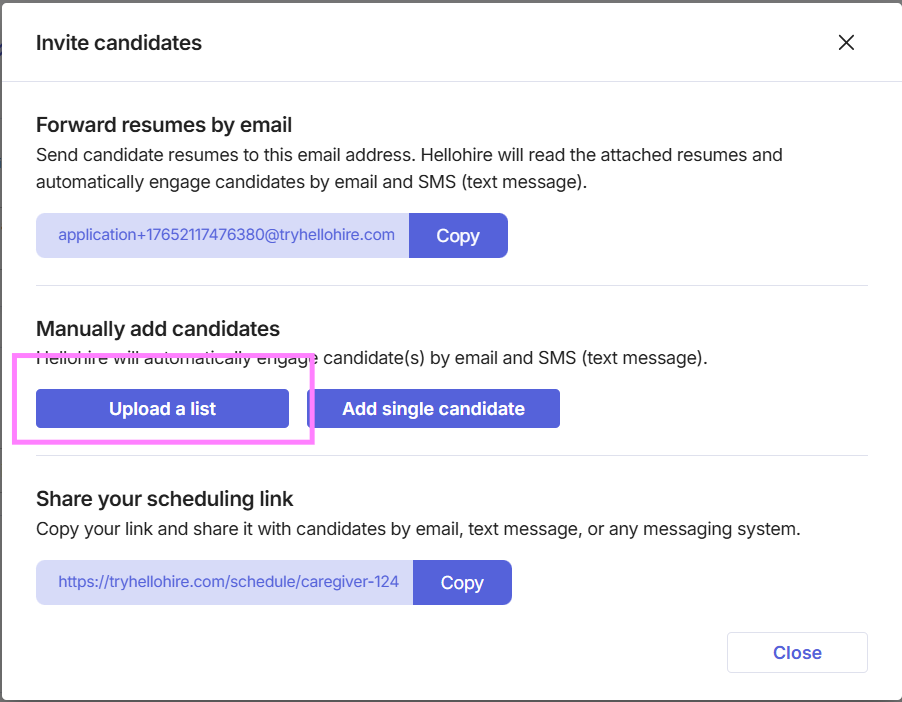
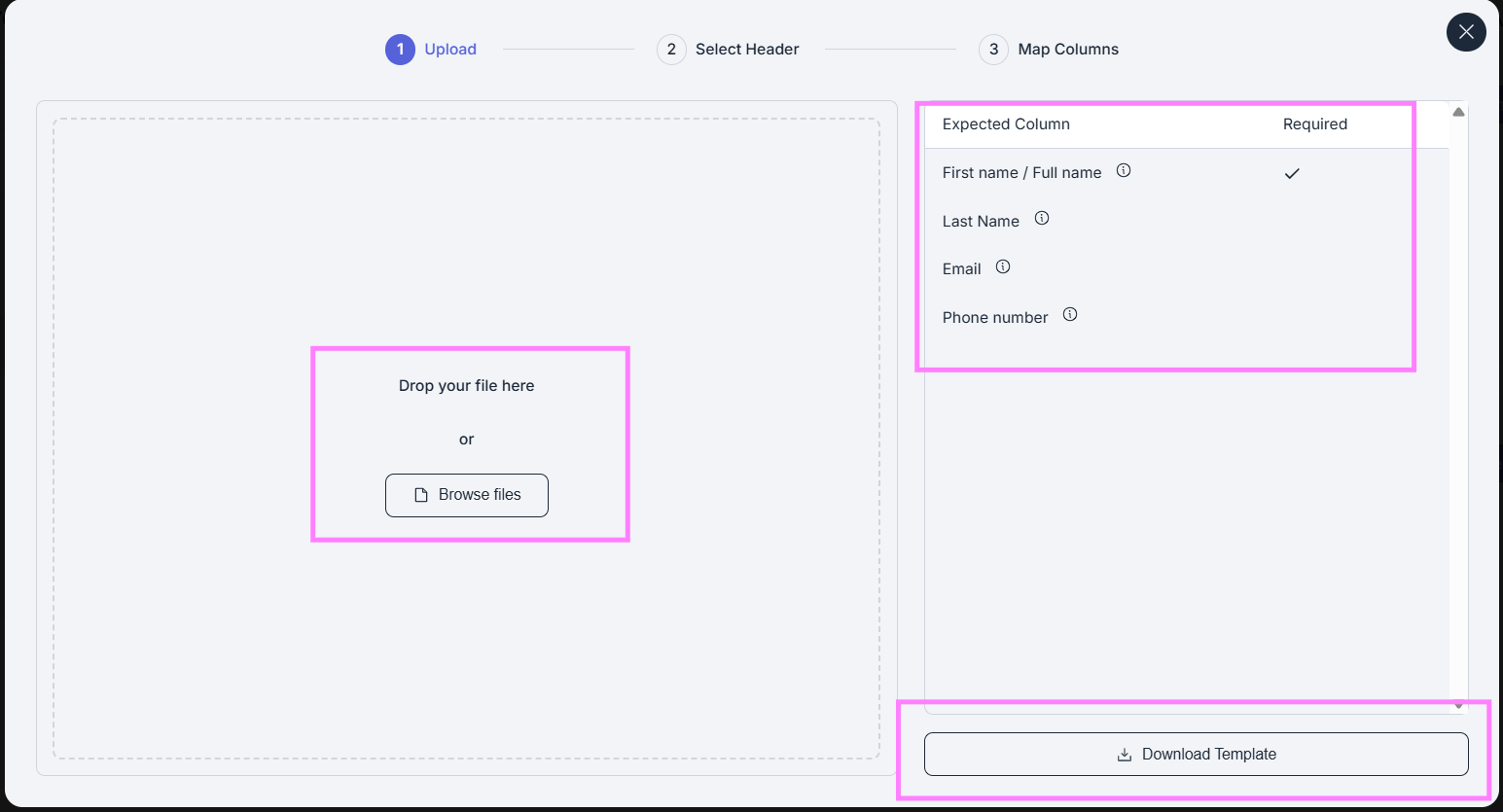
Upload a supported file (typically CSV or Excel).
Make sure your file includes the required fields, such as:
First Name
Last Name
Email address
Phone number
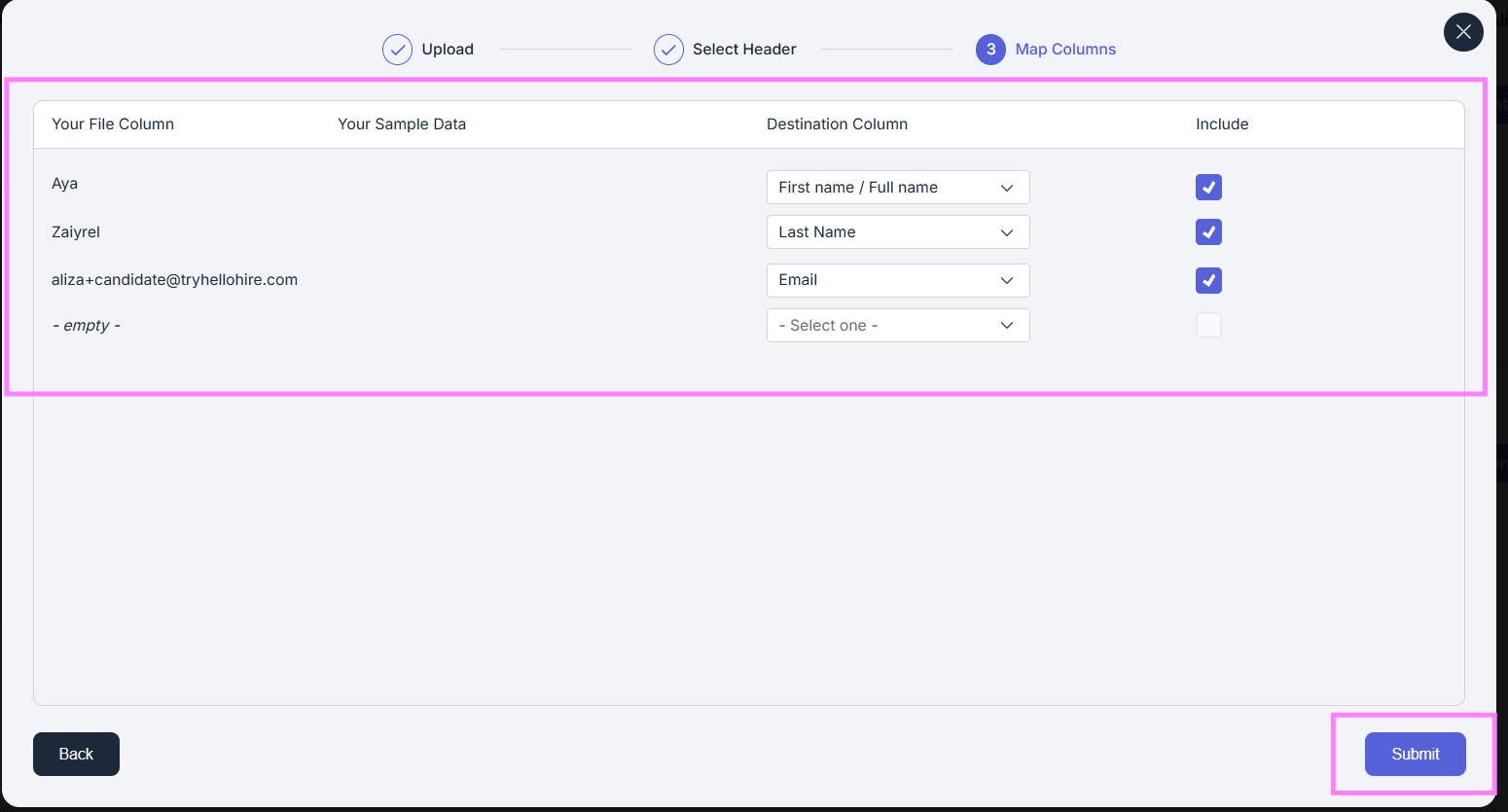
If prompted, please map the columns accordingly. You may also download a template, which can be found in the lower-right corner of the page.
Confirm and complete the upload.
What Happens Next?
All candidates included in the file will be added to the job and contacted automatically via email and/or SMS with a scheduling link to book their interview. Once added, their candidate status will be set to “Contacting.”
HelloHire automatically sends the following:
Email invitations
SMS (text message) invitations (only if a phone number is provided; supported for U.S. and Canada mobile numbers only)
Candidates can then proceed to schedule their interview or move to the next step in your workflow. Once an interview is successfully booked, their status will automatically update to “Upcoming.”
Tips for Best Results
Ensure emails and phone numbers are formatted correctly.
Remove duplicates before uploading.
Use one row per candidate.
How to Add a Single Candidate Manually:
This option is ideal when you only need to add one candidate quickly.
Step-by-Step Instructions
Click Invite candidates.
Under Manually add candidates, select Add single candidate.
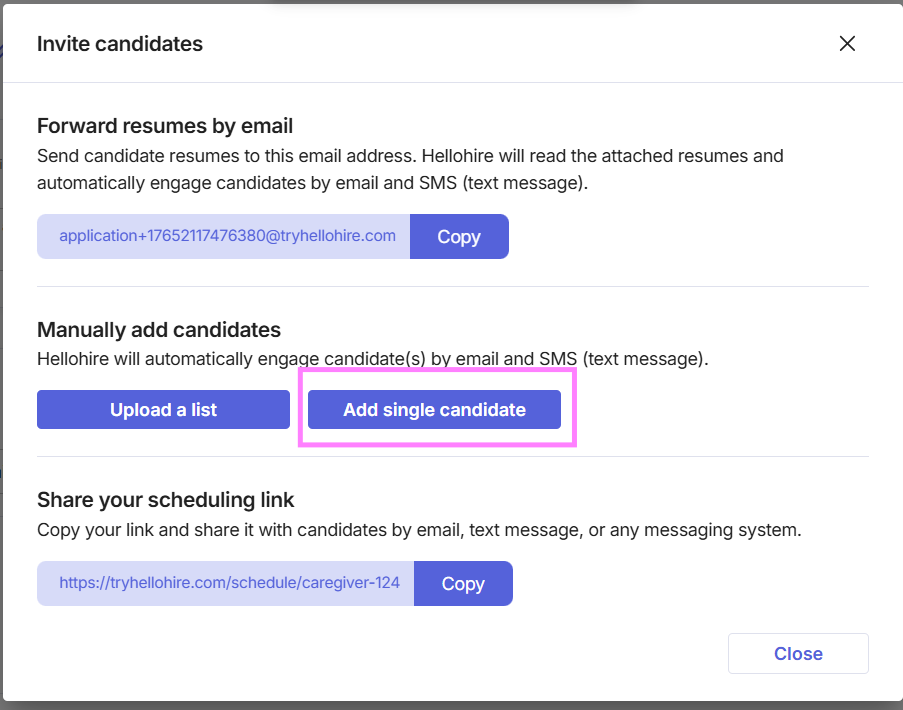
Enter the candidate’s details:
First Name
Last Name
Email address
Phone number (optional but recommended)
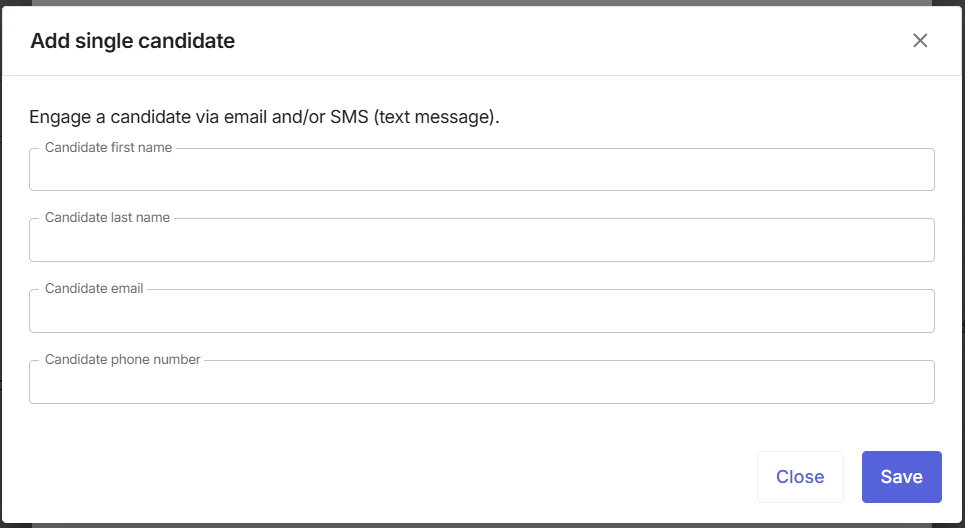
Click Save.
What Happens Next?
All candidates included in the file will be added to the job and contacted automatically via email and/or SMS with a scheduling link to book their interview. Once added, their candidate status will be set to “Contacting.”
HelloHire automatically sends the following:
Email invitations
SMS (text message) invitations (only if a phone number is provided; supported for U.S. and Canada mobile numbers only)
Candidates can then proceed to schedule their interview or move to the next step in your workflow. Once an interview is successfully booked, their status will automatically update to “Upcoming.”
Hellohire Support
If you have questions about anything, we're happy to help. Contact us at support@tryhellohire.com.
Was this article helpful?
That’s Great!
Thank you for your feedback
Sorry! We couldn't be helpful
Thank you for your feedback
Feedback sent
We appreciate your effort and will try to fix the article